About Enhanced Credit
DTN TABS provides Suppliers with a robust option for managing credit risk with the Enhanced Credit module.
Enhanced Credit allows you to factor in the following to calculate a customer’s credit limit:
- Average price per load
- Duty, federal/VAT or local taxes
- Outstanding receivables
- Orders
- Special liabilities
- Credit adjustments
- Pre-Paid Amounts
- Pre-Ordering Hold Balance
Calculated Credit Holds against a customer’s credit limit prevent them from raiding the rack and over lifting their product and/or credit allocations. Whether you are new to Enhanced Credit or converting from DTN TABS legacy credit, the DTN PetroDex® Support Team can assist with the steps necessary to enable credit controls for your customers.
How Enhanced Credit Works
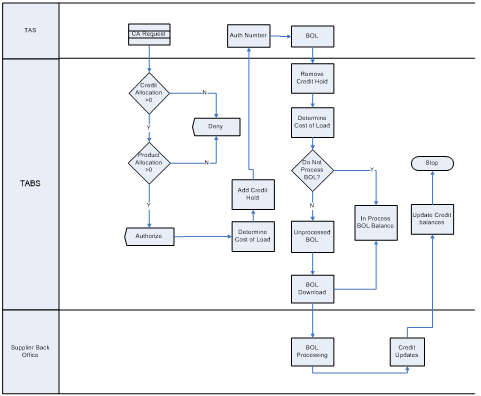
When a driver cards in at the rack, DTN TABS sends an authorization back to the terminal and determines the cost of the load based on the average gas and diesel price using the DTN FastRacks® prices for the region the terminal is located. This credit hold is decremented from the customer’s credit limit.
Once the driver completes the load, the terminal sends the BOL to DTN TABS where the calculated credit hold is removed and a new cost of the load is determined based on the average gas or diesel price of the actual product lifted. Any price differential between the estimated and actual cost of load is re-applied to the credit limit.
If the supplier has the terminal set to Do Not Process BOL, the calculated cost of load dollar amount is placed in the In-Process BOL Balance. If the terminal is set to ProcessBOL, the calculated cost moves to the Unprocessed BOL bucket. Once the supplier downloads the BOLs, the Unprocessed BOLs will move to the In Process BOL Balance. The supplier then has the opportunity to perform credit updates by uploading an ADMLOD file to DTN TABS where a flag is used to clear out the In Process BOLs and remove them from the remaining credit calculation.
Note: If the terminal does not transmit the completed BOL to DTN TABS, the credit hold is applied throughout the remainder of the current load transaction date plus 24 hours before it is removed @ 12:00 AM Central Time from the credit calculation.
The diagram below maps the Enhanced Credit chain of events from authorization request to final credit balance update.
When the Enhanced Credit module is enabled in the Seller’s DTN TABS database, certain Features/Pages are also enabled or disabled. The following outlines those areas that require user action:
- System Defaults
- Security Role Setup
- Custom Display Options
- Price Management
- Duty, Federal/VAT and Local Taxes
- Credit Allocations
- Credit Alerts
- Pre-Payment defaults
TABS Defaults
If the Enhanced Credit module is turned on, the following default options are hidden from the TABS Defaults page.
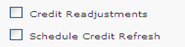
The Receive delayed BOLs option must be selected for Enhanced Credit to function.
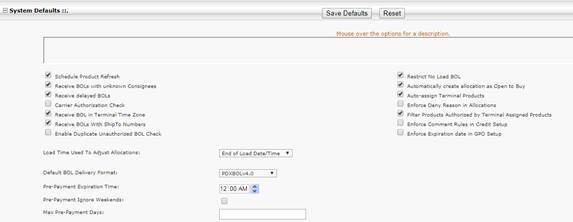
Pre-Payment Expiration Time, Pre-Payment Ignore Weekends, and Max Pre-Payment Days should be configured if this functionality will be used.
Custom Display Options
The Custom Display page overrides Enhanced Credit Labels on the Credit Manage page and the Enhanced Credit Allocation Reports. Company-specific terms can be assigned to credit terms to match your business model. If a field is set to Inactive, the field is removed from the credit setup page and Reports.
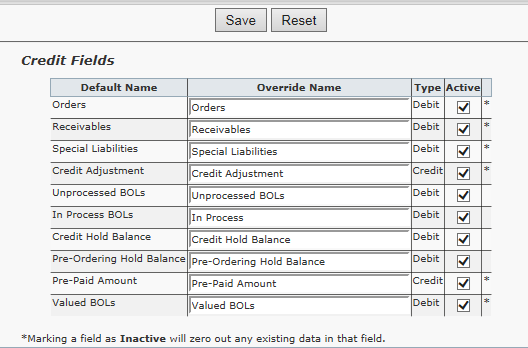
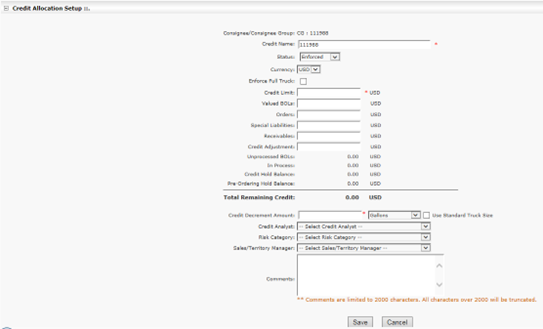
Once changes are made to the Custom Display Options page, the Credit Allocation Setup page displays the new override name.
Only current override names are used in setups and reports. If Orders was named Contracts in August and then changed to Bids in September, Bids will display on all setups and reports including historical reports.
Price Management Page (DTN FastRacks Pricing)
DTN TABS import prices from DTN FastRacks to use for Credit Hold and BOL Estimated Cost calculations.
The DTN FastRacks system calculates an average gas and diesel price for each Spot Market. This calculation is based on all gross supplier prices that are posted through DTN and currently in effect.
Prices are updated daily based on the DTN FastRacks published schedule at approximately 06:00 Central Time.
If the average prices have not been updated in more than a day, DTN Operations receives an alert to correct the problem.
A product’s class is determined by mapping each PIDX family to either gas or diesel. This mapping is maintained by DTN.
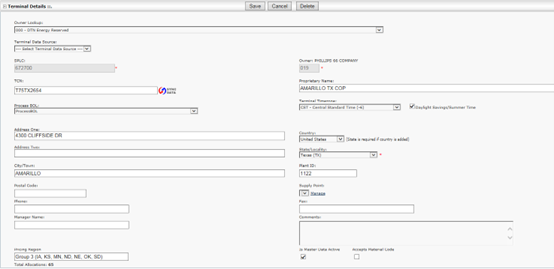
Note: The Spot Market calculates the average gas and diesel price based on the terminal assigned TCN (Terminal Control Number). The DTN FastRacks Pricing Region displays on the Terminal Details page. If no FastRacks Region is set, an average from all Regions is used.
Change a Price
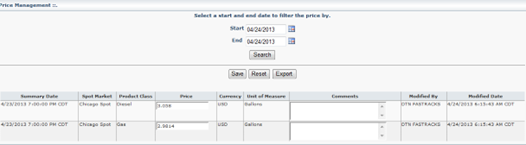
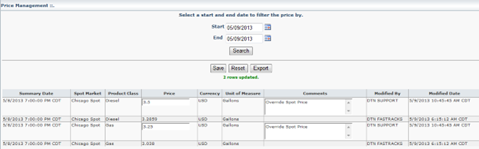
The DTN FastRacks Spot Price can be overridden by the seller by editing the Price field.
Here’s how to change a price:
- From the Data Management menu, select Prices.
Note: Start and End dates default to the current day.
- Click
 .
. - Enter a new price in the Price field.
- Enter a comment regarding the modified price in the Comments field.
- Click
 . The new price, modified by, and modified date appear above the old price.
Export several days prices
Here’s how to export several days of prices:
- From the Data Management menu, select Prices.
- Either modify the start and end dates or leave end date at the current day default.
- Click .
- Click
 . Prices display for current date first.
Tax Setup
Federal/VAT Tax Setup Page
The Federal/VAT Tax Setup page specifies a federal tax amount in cents per gallon (value) or a percentage. This is an optional feature, maintained by the Seller, and used in the calculation of the Credit Hold and estimated BOL cost.
If a country is not listed in the table of results, select a country from the Add Country arrow and click  .
.

| Description | |
| Country: | Identifies the country for this setup. |
| Type: | Specifies the tax rate type as cents per gallon or percentage. Options are:
Value Percentage |
| Volume: | Displays the currency used in the tax rate calculation per unit of measure
Options are: USD EUR GBP NOK CAD Gallons Imperial Gallons Kilo Barrels Liters |
| Weight: | Contains the currency used in the tax rate calculation per unit of measure.
Options are: USD EUR GBP NOK CAD Imperial Ton Kilograms Metric Ton Pounds Ton |
| Comments: | Displays comments when modifying a tax rate. This is an optional field.
|
Credit Hold Calculation Formula
Below is the formula for calculating the Credit Hold upon driver card in at the terminal:
FEDERAL TAX AMOUNT = DECREMENT AMOUNT X THE FEDERAL TAX RATE PER CURRENCY VALUE OR %UNIT OF MEASURE
Estimated Load Cost Calculation Formula
Below is the formula for calculating the Estimated Load Cost upon receipt of the BOL:
FEDERAL/VAT TAX AMOUNT = GROSS GALLONS FROM EACH FINISHED PRODUCT BOL LINE X THE FEDERAL/VAT TAX RATE PER CURRENCY VALUE OR %UNIT OF MEASURE
Change Federal/VAT Tax Rate
Here’s how to change the federal tax rate:
- From the Data Management menu, select Federal/VAT in the Tax Setup
- Click the Edit link of the desired Country. The Edit link is located in the far right column of the page.
- Modify the Type, Volume or Weight field
- Enter comments, if desired.
- Click the Save link to save the changes or the Cancel link to discard the changes.

Change SoldTo tax exempt status
The Federal tax exemption status is based on the SoldTo associated with the Seller Consignees. This status is on the SoldTos/ShipTos page. If a SoldTo is federal tax exempt, a green check mark appears in the Tax Exempt column.

Here’s how to change the SoldTo tax exempt status:
- From the Data Management menu, select SoldTos/ShipTos.
- Enter the SoldTo name or ID in Enter search text
- Click .
- Click the Edit link next to the desired SoldTo Name. The Edit link is located in the far right column of the page.
- In the Tax Exempt column, select the check box to apply the tax exemption.
- Click the Save link.
Local Tax Setup Page
The Local Tax Setup page defines a tax rate percentage per state/locality. This is an optional feature, maintained by the Seller, used in the calculation of the credit hold and estimated BOL cost.
If a country is not listed, select a country from the Add Country arrow and click .

To display and edit the rates associated with each state/locality per country, select Country and then click  .
.

| . | Description |
| Type: | Specifies the tax rate type as cents per gallon or percentage Options are:
Value Percentage |
| Rate | Specifies the currency used in the tax rate calculation per unit of measure. |
| Comments: | Contains comments when modifying a tax rate. This is an optional field.
|
Credit Hold Calculation Formula
Below is the formula for calculating Credit Hold.
STATE TAX AMOUNT = DECREMENT AMOUNT X THE STATE/LOCALITY TAX RATE FOR THE CONSIGNEE
Estimated Load Cost Calculation Formula
Below is the formula for calculating the Estimated Load Cost.
STATE TAX AMOUNT = GROSS GALLONS FROM EACH FINISHED PRODUCT BOL LINE X THE STATE/LOCALITY TAX RATE PER GALLON
Change Local Tax Rate
Here’s how to change the local tax rate:
- From the Data Management menu, select Local Tax in the Tax Setup
- Choose the country from the Select Country arrow and click .
- Click the Edit link of the desired state/ locality. The Edit link is located in the far right column of the page.
- Modify the Type and Rate field
- Enter optional comments, if desired.
- Click the Save link.
Duty Tax
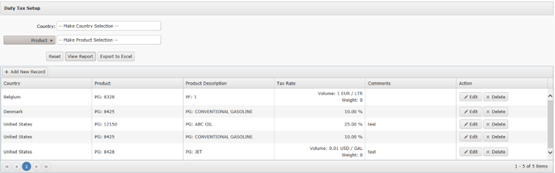
The Duty Tax Setup page specifies a federal tax amount by country and by product in cents per desired unit of measure for weight and volume (value) or a percentage. This is an optional feature, maintained by the Seller, and used in the calculation of the Credit Hold and estimated BOL cost.
Note: Duty Tax is currently only available for suppliers with Master Data Material Master enabled.
Change Consignees to Tax Exempt Status
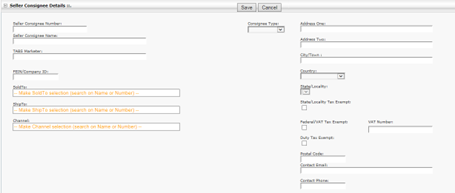
Tax exemption can be controlled via the Consignee setup screens.
Here’s how to change a Consignee to a tax exempt status.
- From the Data Management menu, select Seller or Marketer Consignees.
- Search for the desired consignee by name or number.
- In the Consignee Details pane, select the State/Locality or Federal/VAT or Duty Tax Exempt check box.
- Click .
Credit Allocations
The Credit Manage page creates a credit allocation and allows for management of credit allocations and details surrounding the records. All enhanced credit allocations are at the All Terminals level and cannot be applied at select terminals. The data can be entered manually through the DTN TABS web interface or uploaded with an ADMLOD file.
Note: See the DTN TABS ADMLOD User Guide for more information on ADMLOD.
Credit Allocation Setup
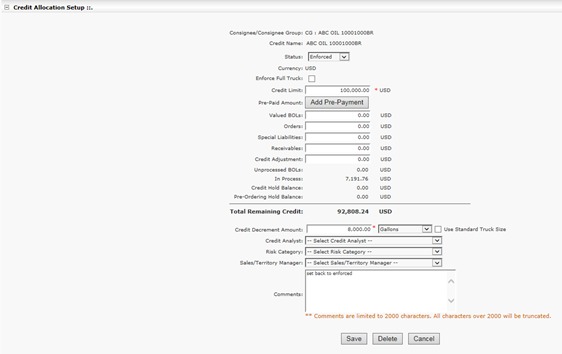
The following fields are available on the Credit Allocations Setup panel.
| Field | Description |
| Credit Name (Customer ID) | Identifies the credit name associated with the customer’s accounts receivables name. The credit name is a unique 1 to 50 character, alphanumeric identifier. |
| Status | Specifies the status of the credit record. Options are:
Enforced Unenforced Deny One time Open |
| Currency | Displays the default country currency used to calculate the credit price values. |
| Enforce Full Truck | Indicates the customer must have available credit in the estimated amount of a full truck load, when selected. If it is not selected, then the customer can have any positive amount remaining in the credit allocation and be allowed to lift. |
| Credit Limit | Identifies the credit limit amount assigned to the credit record. |
| Pre-Paid Amount | Provides the amount the customer has prepaid on the credit account. |
| Valued BOLs | Contains the value amount of the BOLs that have not been invoiced by the suppliers back office. This information comes from Credit Account updates from the suppliers back office. |
| Orders | Provides the dollar balance for non-Fuel Marketing scheduled transactions that impact credit but have not yet reached the receivables balance.
The dollar value is deducted from the amount in the Credit Limit field. Classified as a Debit Type, it calculates a customer’s remaining credit. This field name can be changed or removed from the Custom Display Options page. |
| Special Liabilities | Contains the dollar balance for any special liability for the customer in SAP that is deducted from the amount in the Credit Limit field.
Classified as a Debit Type, it calculates a customer’s remaining credit. This field name can be changed or removed from the Custom Display Options page. |
| Receivables | Indicates the dollar balance for special liabilities for the customer in SAP.
Classified as a Debit Type, it calculates a customer’s remaining credit by deducting from the amount in the Credit Limit field. This field name can be changed or removed from the Custom Display Options page. |
| Credit Adjustments | Adds or deducts from a customer’s credit limit. Used when identifying prepay customers. Classified as a Credit Type, it calculates a customer’s remaining credit. |
| Total Credit Remaining | Specifies the amount of the following formula:
Credit Remaining = Credit Limit + Credit Adjustment – (Receivables + Orders + Special Liabilities + In Process BOL Balance + Unprocessed BOL Balance + Credit Hold Balance) The calculation where pre-orders are submitted is: Credit Remaining Amount = Start Amount + Credit + Prepayment amount – Pre-order Credit Hold – In-process Amount – Unprocessed Amount – Receivables – Orders – Special Liabilities – Valued BOL Amount. |
| Unprocessed BOLs | Describes the total estimated load cost of all Unprocessed BOLs. These are BOLs that have been received in DTN TABS but not yet downloaded by company. |
| In Process BOLs | Defines the total estimated load cost of all In-Process BOLs. |
| Credit Hold Balance | Provides the amount of currency reserved against the customer’s credit remaining when a load is authorized prior to the receipt of the BOL. The following formula is used:
Dollars reserved against remaining credit = Configured Decrement size of a load x Average Fuel Price currently in effect + Federal Tax Amount + State Tax Amount |
| Pre-Ordering Hold Balance | Identifies the amount of currency, on hold, for the credit account for outstanding pre-orders. |
| Credit Decrement Amount | Indicates the amount used to calculate the credit hold amount and the volume or weight used. Options are:
Gallons Imperial Gallons Imperial Ton Kilo Barrels Kilograms Liters Metric Ton Pounds Ton |
| Use Standard Truck Size | Indicates that credit process should use the standard truck size to calculation the estimated credit amount during the authorization process. |
| Credit Analyst | Displays an assigned Credit Analyst for the credit allocation. This list of Credit Analysis is setup in the Data Management > Customer Attributes. |
| Risk Category | Specifies an assigned Credit Risk Category for the credit allocation. This list of Risk Categories is setup in the Data Management > Customer Attributes. |
| Sales/Territory Manager | Contains an assigned Sales Rep or Territory Manager for the credit allocation. This list of managers is setup in the Data Management > Customer Attributes. |
| Comments | Provides an area for entering user notes about the credit allocation.
Note: Comments are limited to 2000 characters. Do not use commas. Make this field required by selecting the Enforce Comment Rules in Credit Setup option on the Defaults page (Admin > TABS Defaults). The system then requires the user to enter a comment when the remaining amount is set to 0 (zero) or when the Active field is not selected when no comment currently exists. |
Setting up a credit allocation record
| Location: Allocations > Credit > Manage |
Here’s how to set up a credit allocation record:
- From the Credit Allocation Name arrow, select one of the options:
Consignee & CG
Consignee Name
Consignee Group
Consignee #
Consignee by City
Channel as Consignee/CG
SoldTo as Consignee/CG
- Click inside the Make credit selection field with consignees/consignee groups and select the desired consignees/consignee group.
- Click . The page expands to include additional panels for allocation information; if there is an existing allocation it displays the allocation.
- If no existing credit allocation exists, click
 .
. - Enter information in the field on the Credit Allocations Setup panel for a new credit allocation.
- Click .
Reports
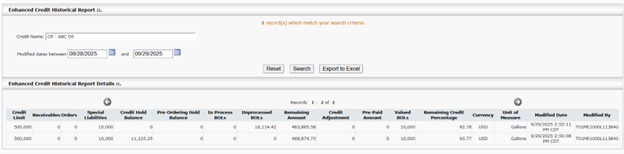
If the Enhanced Credit module is turned on, the Enhanced Credit Allocations Report and Enhanced Credit Historical Report display.
The Enhanced Credit Allocations Report allows suppliers to review their customer’s credit activity and take appropriate action by managing and updating their credit record.
Note: See the DTN TABS Reports Training Manual for more information on the Enhanced Credit Allocations Report.

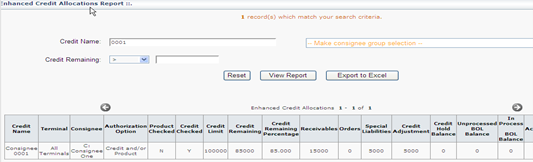
The Enhanced Credit Historical Report generates a comprehensive audit trail of changes made to a credit record over a specified period. This report is accessible exclusively through the Enhanced Credit Module.