BOL Push
Suppliers need to invoice customers as quickly as possible. BOL Push allows for BOLs to be sent directly to your back office in near realtime. This allows for a simplified and more rapid response to the billing process. Faster invoicing and revenue processes also help improve customer relationships.
BOL Push is based on API protocol. DTN and suppliers collaborate to identify an endpoint and the attributes required for DTN to dispatch the data. Once configured, DTN ensures flags are set on a supplier’s account to enable the process to go live. Suppliers then set the BOL Push Delivery flag on each terminal this functionality should apply to.
When a BOL is sent to TABS from a terminal, TABS determines if the BOL Push Delivery flag is set. If so, BOLs will push to your back office via API.
Setting the BOL Push Delivery Flag
To set the BOL Push Delivery flag per terminal:
- Navigate to Data Management > Terminals.
- Click the terminal hyperlink to display the screen below.
- Click BOL Push Delivery.
- Save.
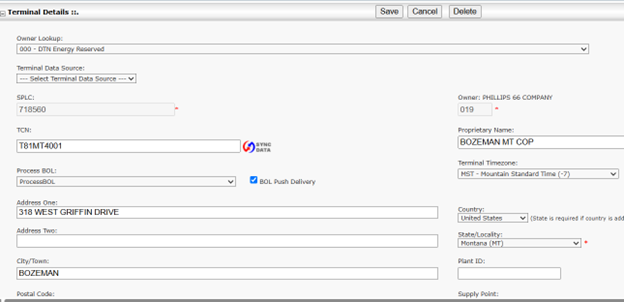
Once the BOL Push Delivery flag is set, BOLs are visible on the Realtime BOL Delivery screen.
Viewing BOLs on Realtime
To view BOLs on the Realtime BOL Delivery screen, navigate to BOLs > Realtime BOL Delivery.
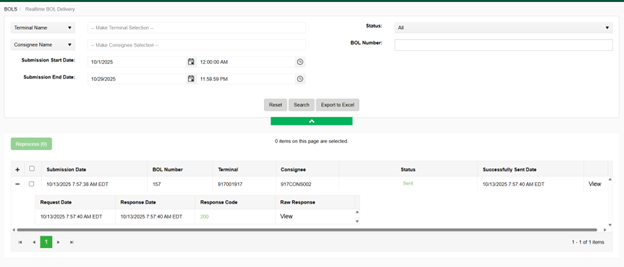
Windows Definitions for Realtime BOL Delivery
- Terminal Name, Terminal SPLC, Terminal City, Terminal Plant
- Identifies the terminal to view data for.
- Status
- Allows for filtering on BOL status. Options are:
- All
- Pending
- Sent
- Error
- Error is the default.
- Allows for filtering on BOL status. Options are:
- Consignee Name, Consignee #, Consignee City
- Identifies the customer to view data for.
- BOL Number
- Can be used to search for a specific BOL.
- Submission Start Date
- Used to start search for a specific time period.
- Submission End Date
- Displays the end date for your search.
Report Results for Real Time BOL Delivery
- Submission Date
- Identifies the date the BOL was submitted by the terminal.
- BOL Number
- Displays the BOL number(s) for the criteria selected.
- Terminal
- Identifies the terminal the BOL was sent from.
- Consignee
- Identifies the customer that loaded product.
- Status
- Displays the status of the BOL. Options are:
- Pending: Document is pending. There has been no attempt to send.
- Sent: Document has been successfully sent to the endpoint.
- Error: Document was unable to be sent to the endpoint.
- In Process: Document is being queued for processing.
- Displays the status of the BOL. Options are:
- Successfully Sent Date
- Show the date the BOL was sent to the endpoint.
- View
- Displays the .xml for the BOL.
- Request Date
- Displays the date DTN attempted to send the BOL to the endpoint.
- Response Date
- Shows the date DTN received a response from the endpoint.
- Response Code
- Displays the code associated with transmission of the BOL. Code 200 indicates a successful attempt.
- Raw Response
- Displays the raw data associated with the BOL.