Customer Managed Alerts configure alerts to notify when product allocations reach configurable thresholds, refresh, or when a supply event occurs. They can create multiple contacts and their own receiver lists for the alerts they choose to add to their account.
- Click the Alerts Flag icon from the Alerts page to open the Alert Management page for Customer Managed Alerts:

Alerts Contact Management
Customers can add email addresses to the system to receive the alerts they configure in Alerts Management.
Here’s how to access contact management:
- Select the Contacts. The Contacts List displays.

The existing contacts can be edited by clicking Edit, or clicking Delete to delete existing contacts.
- Click Add New to add a new contact. The Add New Contact window opens.
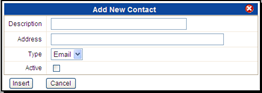
- Enter a description of the new contact (typically a name), the email or SMS address, the address type (Email/SMS) in the Description
- Select Active if this contact should be active for the purposes of receiving the configured alerts.
- Click Insert to save the new contact.
Alerts Receiver List Management
Custom receiver (distribution) lists can be created to group multiple contacts for Alert setup.
Here’s how to access Receiver Lists:
- Select the Receiver Lists The Receiver List page displays.

The existing lists can be edited by clicking Edit, or clicking Delete to delete existing lists.
- Click Add New to add a new receiver list. The Add New Receiver List window opens.
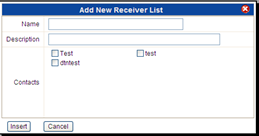
- Enter a name in the Name field and a description in the Description field of the new list.
- Select the appropriate contacts, which were created previously under the Contact Management page, to be included in the new receiver list.
- Click Insert and the new list saves.
Adding a new Allocation Alert
The main Alert Management page creates a new product or credit allocation alert. This page can also add an alert by selecting Set Alert from the main Visibility page for the allocation to add an alert.
- From the main Alert Management page, select Product Allocation from the Allocation Type arrow.
- Click Add New. The Add New Alerts window opens.
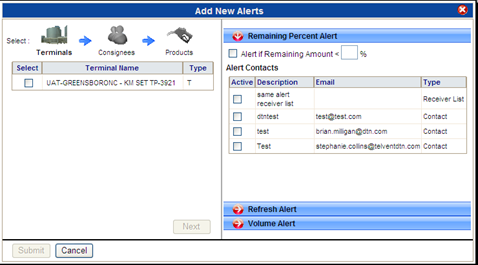
- Select the terminals to configure alerts for and click Next.
- Select the consignees to have the alerts configured for and click Next.
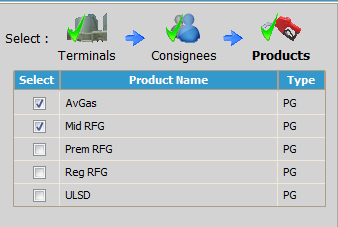
- Select the products that should have alerts set.
- Select the type of alert to receive:
| Description | |
|---|---|
| Remaining Percent Alert: | Notifies the selected contacts when the allocation is below the configured percentage. |
| Refresh Alert: | Informs the selected contacts when the allocation refreshes. |
| Volume Alert: | Alerts the customer if a configured percentage is or is not lifted within the first specified number of days within the allocation time frame.
|
- Once all selected alerts are selected and the Alert Contacts are chosen, click Submit to create all the alerts needed to cover the choices selected.
Adding a new Credit Allocation Alert
Here’s how to add a new Credit Allocation Alert:
- From the Main Alert Management page, select Credit Allocation from the Allocation Type arrow.
- Click Add New. The Add New Alerts box opens.
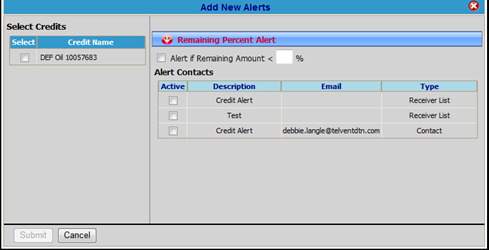
- Select the credit name to configure alerts.
- Select the type of alert to receive.
- Once the selected alert is selected and the alert contacts are selected, click Submit to create all the alerts needed to cover the choices selected.
Adding a new Supply Event Alert
Here’s how to add a new Supply Event Alert:
- From the Main Alert Management page, select Supply Event from the Allocation Type arrow.
- Click Add New. The Add New Alerts box opens.
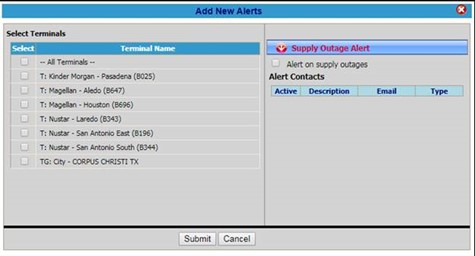
- Select the terminal(s) to configure alerts.
- Select the type of alert to receive.
- Once the selected alert is selected and the alert contacts are selected, click Submit to create all the alerts needed to cover the choices selected.