Table of Contents
- About Load Assistance
- Running Load Assistance
- Viewing the Load Assistance Page
- About Supply Events
- About Customer Setup
- About Credit Allocations
- About Product Allocations
- About GPO Allocations
- About Consignee Load Request History (Last 24 Hours)
- About Consignee Bill of Lading History
About Load Assistance
The Load Assistance page provides information on product and credit allocations, details on BOLs, and recent transactions from the rack.
The Load Assistance page simplifies and reduces the time needed to troubleshoot a loading issue at the rack by combining data that was previously only available by running multiple reports. The page provides the ability to:
- View Supply Events
- Note: Only if you have subscribed to this optional service.
- Check allocations.
- View authorization denials.
- View previous BOL history.
- Provides ability to create a global product override based on the parameters set through the Dashboard Filter pane.
-
From Allocations menu, select Load Assistance. The Load Assistance page appears.

Load Assistance is only available to subscribers and to authorized users through the User Manager page by the assignment of a role that has the Load Assistance page approved.
Note: See the DTN TABS Initial Setup Training Manual for more information on User Manager and Role Setup
Note: Contact your DTN sales representative for subscription information.
When you select a terminal, DTN TABS filters consignees and consignee groups to display only consignees/consignee groups that have been assigned to the selected terminal.
Running Load Assistance
You can search for information by terminal, consignee or consignee group, all products or a specific product, or a DTN TABS-defined product group or product family by viewing the Load Assistance page. In order to search, you MUST select both a terminal and a consignee or a consignee group. A best practice is to search on specific terminals and consignees rather than on groups.
Here’s how to run the Load Assistance page:
- Move the mouse over the Search Tip field (by the Terminal field), to display a list.
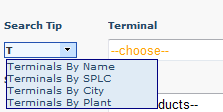
Note: This field is set to Terminals By Name as the default. Skip this step and begin typing the name of the terminal in the Terminal field and then continue to Step 3.
2. Select one of the options for displaying terminal information in the Terminal field.
3. Select a Terminal based on your Search Tip selection.
4. Move the mouse over the Search Tip field (by the Consignee field), to display a list.
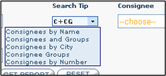
Note: This field is set to Consignee and Groups as the default. You may skip this step and begin typing the name of the consignee or consignee group in the Consignee field and then continue to Step 6.
5. Select one of the options for displaying consignee information in the Consignee field.
6. Select a Consignee based on your Search Tip selection.
7. Move the mouse over the Search Tip field (by the Product field) to display a list.
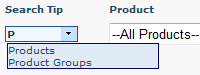
Note: This field is set to Products as the default. Skip this step and begin typing the name of the product in the Product field and then continue to Step 9.
8. Select one of the following methods for displaying terminal information in the Product field.
9. Select a Product/Product Group based on your Search Tip selection.
10. Click  .
.
Note: Click  to clear all parameters for this report and make new selections.
.
Viewing the Load Assistance Page
About Supply Events
After running the Load Assistance page, you can view any supply events based on the search criteria used.

About Customer Setup
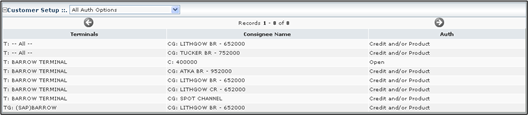
Customer authorization points, as set through the Allocations page for the selected filters, can be viewed in the Customer Setup panel.
The Customer Setup panel provides information on how the allocations are configured and assists with troubleshooting deny codes at the rack. Use the Auth Type field in the Customer Setup panel to filter the results.
Note: If there are no records for the selected criteria, the “No customer information matches your search criteria” message appears in the Customer Setup panel.
| Description | |
| All Auth Options Resulting in Deny | Displays all authorization options (direct and indirect) in the allocation header that would cause the driver to be denied at the loading rack. For example, if a consignee is selected at a specific terminal, this panel not only displays any allocation for that consignee at that terminal, but also displays any allocations that are done at the Terminal/Consignee Group level, Terminal/Sold To level, or Terminal/Channel level. The All Auth Options Resulting in Deny option is the default setting.
Below is an example of one level of allocation (Terminal/Consignee level.) For the first terminal, the Auth column displays Credit and/or Product, but neither of the records are attached, which denies the driver at the rack. For the second terminal, the Auth column displays Deny (for example, the seller made a decision to deny a customer until past credit issues are resolved.) |
| All Auth Options | Provides all authorization options (direct and indirect) for a selected terminal and consignee/consignee group that are set through the Allocations Product Manage page or through the ADMLOD process.
|
| Credit and Product | Contains all authorization options (direct and indirect) for the selected terminal and consignee combination that are set to Credit and/or Product through the Allocations Product Manage page or through the ADMLOD process.
|
| Deny | Identifies all authorization options (direct and indirect) for the selected terminal and consignee combination that are set to Deny through the Allocations Product Manage page or through the ADMLOD process.
|
| No Auth Option | Indicates whether No Auth Option was selected for the selected terminal and consignee combination (direct and indirect).
|
| One time | Specifies all authorization options (direct and indirect) for the selected terminal and consignee combination that are set to One Time through the Allocations Product Manage page or through the ADMLOD process.
|
| Open: | Determines all authorization options (direct and indirect) for the selected terminal and consignee combination that are set to Open through the Allocations Product Manage page or through the ADMLOD process.
|







About Credit Allocations
The Credit Allocations panel displays all credit allocations for the selected filters. If the selected consignee/consignee group combination had a credit allocation, it would reflect all the associated credit information in the Credit Allocation panel.

The columns in this panel contain the following information:
Note: Fields marked with an (E) after the names are shown if using the Enhanced Credit Module. Fields marked with an (L) after the names are shown if using the Legacy Credit process. Fields without such designation are shown no matter which version of our credit system is being used.
| Description | |
| Credit Name (Customer ID) | Identifies the credit record. |
| Period (L) | Displays the refresh period in days. |
| Units | Contains the units of measurement. |
| Credit Limit (E) | Provides the credit limit for a customer in dollars. |
| Start (L) | Specifies the starting credit limit. |
| Used (L) | Determines the number of units that have been lifted. |
| Receivables (E) | Indicates the dollar balance due based on lifting activity for each customer, minus any payments received. |
| Orders (E) | Describes the dollar balance for non-Fuel Marketing scheduled transactions that impact credit but have not yet reached the receivables. This value calculates the customer’s remaining credit. |
| Special Liabilities (E) | Specifies the dollar balance for special liabilities for the customer in SAP. Used to calculate remaining credit. |
| Unprocessed BOL Balance (E) | Provides the total estimated load cost of all Unprocessed BOLs. |
| In-Process BOL Balance (E) | Indicates the total estimated load cost of all In-Process BOLs. |
| Credit Hold (E) | Defines the amount of dollars reserved against the customer’s Credit Remaining when a load is authorized prior to the receipt of the BOL. The amount is calculated:
(Configured Decrement Size of a Load * Average Fuel Price currently in effect) + Federal Tax Amount + State Tax Amount = Amount of dollars reserved |
| Remaining (E) | Displays the remaining amount. The amount is calculated:
Credit Limit – (Receivables + Orders + Special Liabilities + In Process BOL Balance + Unprocessed BOL Balance + Credit Hold Balance) = Remaining amount |
| Remaining (L) | Describes the remaining amount. The amount is calculated:
Start – Used = Remaining amount |
| Active (E) | Indicates if the credit record is active or inactive. |
| Auth Option (E) | Indicates if the record is enforced or unenforced. |
| Deny Reason Code (E) | Enter frequently used reason codes as to why a customer would be denied. They can then be used when setting a credit record to deny. |
| Deny Reason Code Description (E) | Details for the reason codes. |
| Refresh Date (L) | Determines the next time the record refreshes.
|
About Product Allocations
The Product Allocations panel displays all active direct and indirect product allocations for the selected filters. For instance, if a consignee is selected at a specific terminal, this report displays any allocations for that consignee at that terminal. It also displays any allocations for the consignee groups to which the consignee has been assigned. Flat and hierarchal allocations set to unenforced track lifted volume and refresh the same as active allocations but are not used to authorize loads.
Unenforced allocations that are set through the Allocations Product Manage page or ADMLOD to track volume without authorizing loads. Flat and hierarchical allocations set to unenforced track lifted volume and refresh the same as active allocations but aren’t used to authorize loads. Unenforced allocations are not displayed on the Load Assistance Dashboard.
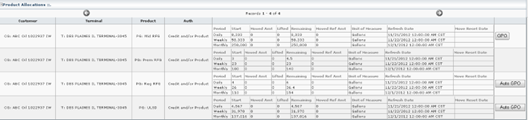
The columns in this panel contain the following information:
| Description | ||
| Customer | Displays consignee/consignee group name the Product allocation is assigned to. | |
| Terminal | Contains the terminal name the Product allocation is assigned to. | |
| Product | Identifies the product name, product group, or product family of the Product allocation. | |
| Auth | Indicates the Auth option that was selected in allocation set up page. | |
| Period | Provides the effective time period for the allocation. | |
| Start | Describes the number of units allocated initially. | |
| Moved Amt | Specifies the number of units added to record as a part of a move event. | |
| Lifted | Determines the number of units lifted against this allocation. | |
| Remaining | Displays the number of units remaining on this allocation. | |
| Moved Ref Amt | Contains the number of units added to refresh as a part of a move event. | |
| Unit of Measure | Identifies the volume designation used for the record (i.e. Gallons, Liters). | |
| Refresh Date | Indicates the date and time when the allocation is refreshed. For a specific terminal, the time zone is the same one defined for the terminal through Terminal Setup. | |
| Moved Reset Date | Describes the expiration date for a move event. | |
| GPO | Defines the Global Product Override (GPO).
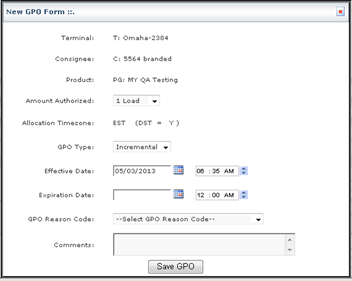
A GPO is a quick way to load after having exhausted or nearly exhausted allocations. When a product allocation is running low and a customer needs to load more product than is available before the next Refresh Date, issue a GPO to provide additional product right away. All levels (direct and indirect) of product allocations include a GPO button. The GPO button appears on the right side of the page. To create a global product override to enable a customer to load, click GPO, enter the required information, and click Save. |
|
| Amount Authorized | Determines the number of loads of the selected product/product group that can be lifted. Number of gallons per load and maximum number of loads is set through the Product Override Settings page. | |
| Allocation Time Zone
|
Describes the time zone in which the GPO is controlled by. | |
| GPO Type | DDisplays the GPO type to use. Options are:
Incremental Borrowed T The default is configured in Product Override Settings page. |
|
| Effective Date | Specifies the date and time the GPO becomes active. | |
| Expiration Date | P Provides the date and time after which the GPO will no longer be in effect. | |
| GPO Reason Code | Defines the quick code for why a GPO was issued. | |
| Comments | Displays any user-entered notes and comments.
|
|
About GPO Allocations
The GPO Allocations panel displays all active GPO for the selected filters.

The columns in this panel contain the following information:
| Describes | |
| Terminal | Indicates the terminal that the GPO applies to. |
| Customer | Identifies the Consignee/Consignee Group that the GPO applies to. |
| Product | Specifies the Product/Product Groups that the GPO applies to. |
| Start/End Time | Defines the effective period for the GPO. |
| Volume | Displays the number of gallons authorized for the GPO. |
| Lifted | Determines the number of gallons lifted against the GPO. |
| Remaining | Number of gallons remaining on the GPO. |
| Unit of Measure | Contains the volume designation used for the record (i.e. Gallons, Liters). |
| Reason Code | Displays the quick code for issuing a GPO. |
| Approved By | Identifies the user who issued the GPO.
Note: GPOs are done at the same level as allocations (terminal, consignee group level on product/ product group).
|
About Consignee Load Request History (Last 24 Hours)
The Consignee Load Request History (Last 24 Hours) panel displays the last 24 hours of load requests and transaction that have not reconciled to create a BOL. All authorization requests that resulted in a denial and all authorization requests that were granted but did not reconcile with a BOL record are displayed.

The columns in this panel contain the following information:
| Description | |
| Date | Indicates the data and time of the load request. |
| Consignee | Describes the unique, identifying number for the customer. |
| Consignee Name | Contains the name for the consignee. |
| Carrier | Identifies the carrier of the product. This is an alphanumeric number field. |
| BOL Number | Specifies the BOL number for the transaction. |
| Type | Indicates the Transaction Type. |
| Trans No | Displays the unique identifier for a successful transaction. |
| Result | Defines the results of a transaction sent to DTN TABS. |
| Prods Authed | Lists the authorized products/product groups for loading. |
| Prods Not Authed | Provides the product / products groups not authorized for this customer at the terminal.
|
About Consignee Bill of Lading History
The Consignee Bill of Lading History panel displays BOLs received over the last 24 hours for the selected filters.

The columns in this panel contain the following information:
| Description | |
| Date | Defines when the transaction was sent to DTN TABS. |
| Consignee | Identifies the unique number for the customer that was set up through the Consignee Setup screen or through an ADMLOD. |
| Consignee Name | Provides the consignee name that was defined for the consignee through the Consignee Setup screen or through an ADMLOD. |
| BOL Number | Contains the BOL number for the transaction. |
| Product | Lists the product lifted. |
| Gross Amount | Describes the number of gross units lifted. |
| Unit of Measure | Specifies the volume designation used for the record (i.e. Gallons, Liters). |
| Carrier | Determines the SCAC number for the carrier. This is an alphanumeric number which identifies the carrier of the product. |
| Authorized | Indicates whether the transaction was authorized by DTN TABS. Options are:
Yes – authorized through DTN TABS. No – not authorized through DTN TABS. |