Overview
A better way to communicate with your customers
In the highly competitive fuel supplier environment, you need to make high stakes decisions day in and day out. Intelligent decision makers optimize their choices with a steady flow of real-time information.
Using DTN TABS Supply Event Module allows you to provide information about both planned and unplanned terminal disruptions to the individuals who need to know, allowing them to react to potential issues before they become a crisis and impact the bottom line.
DTN TABS allows you to notify both internal personnel and business partners via pro-active, targeted emails or SMS messages containing the specific information they need to react and avoid costly issues at the terminal.
In addition to notifications, terminal statuses are also communicated within DTN TABS and customer facing Allocation Viewers to ensure the information is visible in real-time.
The solution provides control over customer communications with the ability to decide when a message is delivered for each situation. Message templates allow a consistent corporate message from a central platform to help minimize any errors in correspondence from manual processes or workflow missteps.
When you have to move quickly to react to terminal disruptions, DTN TABS Supply Event Alert Management gives you the ability to inform decision makers in an accurate and timely fashion improving customer service and avoiding possibly costly issues at the terminal.
Supply Events
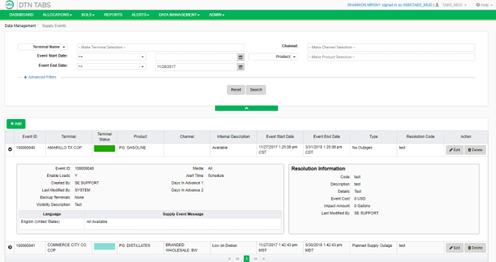
Within DTN TABS, terminal specific supply event messages can be created, edited, and managed.
The Supply Events data management page allows users to view, edit, delete and create new messages. Sending a new message, updating an existing event with additional information or notifying customers that an event has been resolved is easy and efficient.
Adding a Supply Event
Supply events with DTN TABS are terminal specific.
For suppliers with channels setup within DTN TABS, events can be assigned to one or more channels or for all channels of product allocations to help control both who receives notification and allow for specific messages templates per channel to customize communications. In the case where a supply event is limited to one or more channels, only users affected by these channels receive alerts.
An event may affect all products, one or more product group or family, or specific products. These can be identified with the event setup and are communicated within the notifications.
1. From the Data Management menu, select Supply Events.
2. Click  .
.
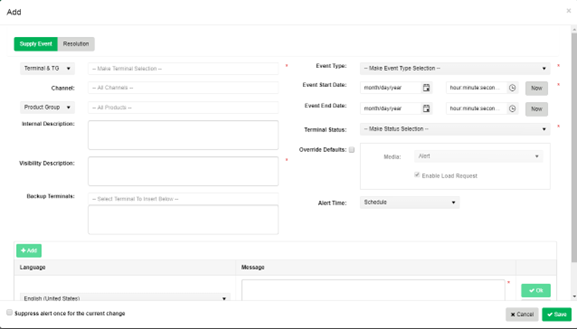
Terminal Statuses can be configured within DTN with a specific code and color and then assigned to an event. During the period between the supply event start and end dates, the terminal status color is displayed in several key locations within DTN TABS.
The Allocations Details panel on the Allocations > Product > Manage page, the Terminal report, Product Allocations report, and Supply Event reports all display the current terminal status. (Refer to the Reports section in this training manual for more details.)
For users with the DTN TABS Load Assistance Dashboard, the terminal status displays a quick indicator of possible issues when diagnosing terminal loading.
The terminal status displays for those with DTN TABS Allocation Viewer along with additional terminal disruption information, providing a quick and easy way to communicate directly to your customers.
DTN TABS specifies the supply event start time in the future as well as in the past. For those events within a specific window of time, the event end date can be entered when the event is created. For unplanned events where the end date is not known, this field can remain open and updated when the event is resolved.
DTN recognizes there are several possible causes for terminal disruptions and the importance of effectively tracking and communicating the reason. Whether the event is a planned supply event, unplanned terminal equipment outage, or an inbound logistics problem causing long lines, users can use the Event Type field to track what is happening and why.
Additional internal details related to the event can be added and stored in the Description for future reference and analysis.
For suppliers using GPO or Add Load functionality within their DTN TABS Allocation Viewer, users can decide to continue to allow or suspend GPO events related to the terminal/product combination using the Enable Load Request feature. The feature is automatically re-enabled for your customers when the event expires.
Controlling the message to your customer is important and the Supply Events gives you control over what, when and to whom information is delivered.
| Description | |
| Media | Allows you to control how the message is delivered. Options are:
ALL – results in the supply event notification being emailed, sent via SMS and shown in both DTN TABS and Allocation Viewer. ALERT – results in the supply event notification being sent via email or SMS, but not shown within DTN TABS or Allocation Viewer. DISPLAY – shows within both DTN TABS and Allocation Viewer without sending email or SMS notifications. INTERNAL – only shows within the DTN TABS and does not display the terminal status within the Allocation Viewer or send notifications via email or SMS. |
| Alert Time | Specifies two methods of scheduling email and SMS notifications for the event. Options are:
SCHEDULE – sends notifications for each event based on the following system schedule
LIMIT TO DAYS IN ADVANCE – allows notifications to be sent once or twice based on the days in advance specified. If both Days In Advance #1 and Days In Advance #2 fields have zeros (0) or are empty, the alert is sent once at the time when the event is saved. Alerts aren’t sent for any other events including the updates to the alert. If one of the Days In Advance fields has a value, then the alert is sent once at the time is specified in the Days of Advance field. If the Days of Advance fields fall on the time that is in past, the alert is sent immediately. If both Days In Advance #1 and Days In Advance #2 fields have values greater than zero (0), then the alert is sent two times for each of the Days In Advance value. Users can enter an event specific message per configured language. These messages appear within the context of message templates setup in Alert Language Editor (Alerts > Email Preferences > Alert Language Editor). |
| Suppress alert once for the current change | Avoids sending notifications when a user makes a change to an event and does not want a notification to be sent, if selected.
|
To specify backup terminals related to an event, use the Backup Terminals section. This section can be included in the message templates to convey necessary and critical information regarding the course of action notification recipients should take.
Event Resolution
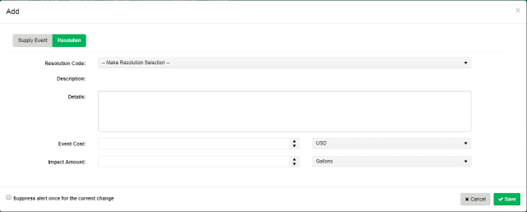
To allow for the tracking and reporting of events and how they are resolved, DTN TABS provides the ability to record both the type of resolution and also details.
Users can setup and select specific resolutions codes, the specific details related to the event resolution, along with the cost and product volume impact.
This information can be extracted within reports for additional analysis or import into other internal systems.
Once an alert has been set up, DTN TABS checks processing every 5 minutes to determine whether a transaction has occurred that should trigger an alert. If so, the system automatically sends the alert to the associated contact or alerts receiver list.
Searching and Viewing Events
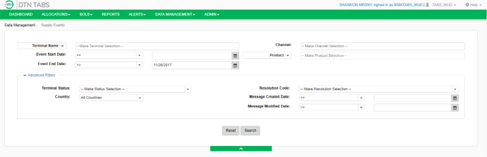
Finding events stored within DTN TABS is made easy by allowing users to enter various criteria related to the event or group of events desired. Terminal, Channel, Start Date, End Date or Product affected by the event can all be used to narrow search results. Advance filters allow users to further refine their search.
1. From the Data Management menu, select Supply Events.
2. Click  .
.
Editing or Deleting Events
Once the desired event is found, all the data related to the event is displayed. Events can be edited allowing users to add additional information such as entering an event end date or event resolution information. Messages can be updated to deliver pertinent information to customers. If the user makes a change to an event and does not want a notification to be sent, the Suppress alert once for the current change field can be selected to avoid sending notifications.
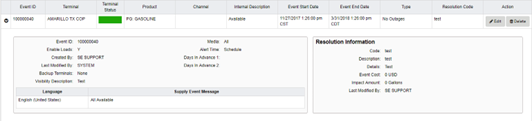
If a mistake is made, events can be deleted; however, to avoid mistakes, events can only be deleted if no messages have been sent out.
Copying Events
To keep the messages consistent and avoid unnecessary duplication of effort, DTN TABS allows events to be copied. By clicking  , users can leverage the information previously entered in an event, make the necessary edits and store the new event.
Setup and Maintenance
Reason Codes
Reason codes are assigned to all Supply events. Configuring reason codes allows users to assign individual colors used to display terminal disruptions on visibility tools and within DTN TABS. Each reason code can specify default values for enabling load requests (GPOs) and the media setting controlling the delivery mechanism for the event message. These values can always be overridden when entering an individual event.
1. From the Admin menu, select Supply Events under the Configuration list. The Supply Events page displays.
2. Click  .
.
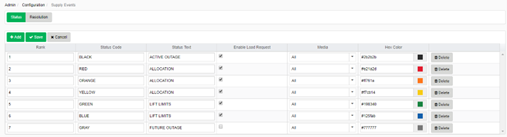
Assigning a rank to each code determines the most prominent color to be displayed in the case where more than one active event occurs for a terminal and/or product.
Resolution Codes
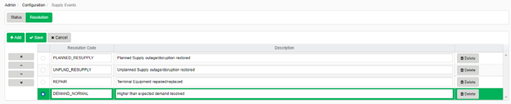
Resolution codes can also be configured within DTN TABS. These allow quick and easy classification of event resolutions. Once assigned to events, the resolution codes can be used to filter current or past events for easy identification and reporting. Resolution information can be used to analyze events.
1. From the Admin menu, select Supply Events under the Configuration list. The Supply Events page displays.
2. Click  .
.
Message Templates
Messages can be configured in the Language Editor (Alerts > Email Preferences > Alert Language Editor) page. There are three types of supply event alerts:
- Supply Event New Alert
- Supply Event Changed Alert
- Supply Event Ended Alert
DTN TABS allows different email templates for each country, language and channel for these alerts.
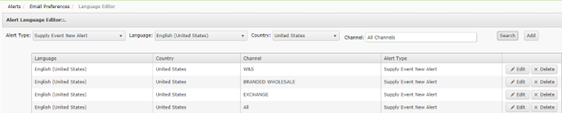
Language Editor
The Alert Language Editor page allows you to enter alert text in the language of your target market.
For Email templates, users can specify an email subject line.
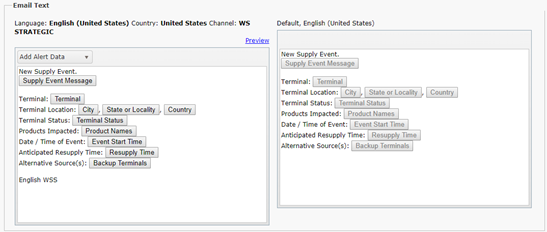
Within the template builder, several pieces of information related to the Alert Type are available. When added to either the subject or body of a message, the information is dynamically replaced with the appropriate information when building the message for delivery.
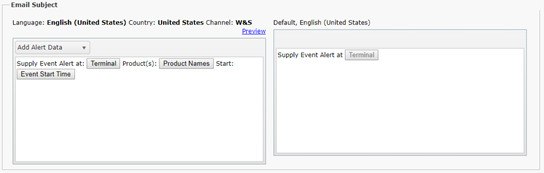
Information available for Supply Event messages includes:
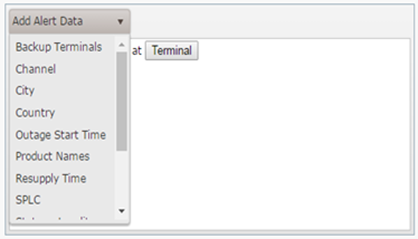
- Backup Terminals
- Channel
- City
- Country
- Event Start Time
- Event End Time (Resupply Time)
- Product Names
- Terminal SPLC
- State or Locality
- Terminal Name
- Terminal Status
- Supply Event Message
While building the template, users can click the Preview link to view an example.

The email body or text can also be built.
SMS
The Alert Language Editor also allows users to create specific templates for SMS messages including subject and text. The separate templates allows for shorter more concise messages to be delivered via texting.
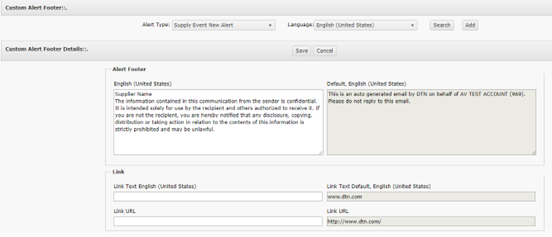
Custom Footer Message
Each alert type within DTN TABS, including Supply Event messages, can have a custom footer message (Alerts > Email Preferences > Footer) that appears. Footer messages are created by language with each allowing for a unique URL.
This often directs users to call customer service or to go to the website that contains the Allocation Viewer.
Sender
A custom Sender email address can be set up (Alerts > Email Preferences > Senders) so the alert appears to have come from your organization rather than DTN. It is recommended to use this feature when sending Alerts to customers to prevent confusion and enables them to reply to the Alert and get assistance from your Customer Service group or other area. Multiple Sender addresses can be set up so Credit Alerts appear to have been sent from the Credit Department and Product Alerts appear to have been sent from the Supply Department.

We also recommend taking advantage of our DTN TABS Sender option. This option allows you to designate a different email address.
For example, you have an internal customer support email address that customers can send emails to for questions and assistance [email protected]. You can set this address as the DTN TABS Sender. Once the DTN TABS system generates the alert, it is sent as [email protected] so your customers can respond with questions or requests.
Message Delivery
A supply event could be created for some channels or for all channels of product allocations. The alerts are sent only to SoldTos that have Active or Unenforced product allocation statuses. In the case an event is limited to some channels, only users affected by these channels receive alerts.
An alert (email/SMS) is sent for each of the events created, Event Day in Advance, Event Started, and Event Ended events. Only one alert is sent if multiple events happened at the same time. There is also a floating Event Changed Event that can occur any time after event is created, even after an event ended.
Receiver List & Contacts
Receiver lists group individual contacts into a distribution list that can be used to send alerts. These lists can be created based on internal service groups or group individual email addresses from an external client (Alerts > Email Preferences > Receivers).
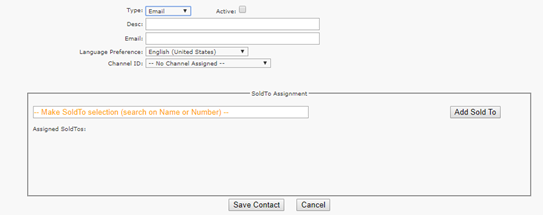
Individual contacts can be maintained within DTN TABS. A contact can be created for email, SMS email or SMS storing the appropriate email address or phone number. Language preference, channel and Sold To(s) can be assigned to each contact to control when and which message template is delivered.
DTN recommends creating email lists within your corporate email system and then sending alerts to these lists. For example, a list for Product Allocation Specialists could be maintained so whenever an employee is added or subtracted to this list, they would start or stop receiving alerts.
Reports
Supply Event Report
The Supply Event Report (Reports > Other Reports > Supply Event Report) displays the supply events for channels of product allocations.

This report can be filtered to search for a specific set of events. Once found, the report can be viewed within DTN TABS or exported to Excel.
Supply Event Report field definitions
The following fields are available on the Supply Event Report page:
| Field | Description |
| Terminal | Contains the unique identifier for the terminal. The Terminal ID consists of the SPLC code for the terminal and the Terminal Owner’s ID. |
| Product | Specifies the product group or product family. |
| Message Created Date | Provides the date the event was initially created. |
| Event Start Date | Indicates the date the event started. |
| Message Modified Date | Displays the date the event was last modified. |
| Event End Date | Identifies the date the event ended or is scheduled to end if the date is known. |
Supply Event Report results
Definitions for the Supply Event Report results are:
| Description | |
| Event ID | Displays the unique identifier for the event. |
| Terminal | Contains the unique identifier for the terminal. The Terminal ID consists of the SPLC code for the terminal and the Terminal Owner’s ID. |
| Terminal Status | Provides the supply outage status. The status categorizes the impact from the supply event and is a custom status defined by the supplier |
| Product | Specifies the product group or product family. |
| Channel | Indicates the name for the channel of trade. |
| Visibility Description | Describes the supply event that displays on the customer visibility Allocation Viewer. |
| Internal Description | Displays the description or notes of the event that are visible only to internal supplier users. |
| Event Start Date | Contains the start date of the supply event. |
| Event End Date | Provides the end date or planned end date of the supply event, if known. |
| Type | Determines the category of the supply event. |
| Enable Loads | Disables the Add Load/GPO request option on the Allocation Viewer, if selected. |
| Media | Specifies how the event is broadcasted or displayed in Visibility. Options include:
Alert = Event with send an alert only, not displayed on AV or DTN TABS pages. All = Event sends an alert, displays in AV and in DTN TABS. Display = Displays in AV and DTN TABS, but no alert. Internal = Displays in DTN TABS only. Not on AV and no alerts. |
| Alert Time | |
| Days in Advance #1 | Provides the alert number of days prior to the event starting. (1 of 2) Supplier can send up to two notification alerts times the number of days prior the event starting. |
| Days in Advance #2 | Contains the alert number of days prior to the event starting (2 of 2). |
| Notify | Indicates if the alert notification is suppressed for this add/update for the event. |
| Created Date | Indicates the date the event was created. |
| Modified Date | Identifies the date the event was last updated. |
| Modified Type | Describes the type of modification (i.e., add, update, or delete). |
| Backup Terminals | Lists the alternative terminal for as a backup to the terminal that is having the supply event. |
| Resolution Code | Contains the supplier customized code to track how the event was resolved. |
| Resolution Description | Describes the resolution code. |
| Event Cost | Records the cost of the impact from the event. This is an optional field. |
| Currency | Defines the currency used for the cost of the event. |
| Impact Amount | Indicates the amount of the supply impacted by the event. |
| UOM | Identifies the unit of measure (UOM) for the impacted amount as a weight or volume. |