DTN TABS Manual BOL Upload
DTN TABS provides Suppliers with the ability to manually create BOLs in the event the real-time BOL was not transmitted from the terminal.
Manually entered BOLs simulate a terminal sending an unauthorized BB (Build BOL) or BL (BOL Line Item) record. Manual BOLs are reflected in the BOL Viewer as well as credit and/or product allocations, increasing your ability to control liftings. Once manually entered BOLS are created in DTN TABS, they can be downloaded with the Get BOL function or they are available to be downloaded in the Suppliers’ FTP batch BOL job, if the terminal is set to ProcessBOL.
All manual BOL’s are sent in as a real-time version 4.01 or 5.01 unauthorized BL record.
Manual BOLs can be created individually on the TABS website or in bulk by uploading a spreadsheet.
Creating a Single Manual BOL
A single BOL can be created on the TABS website. Here is how to create a single BOL:
Select BOLs > Manual Entry. Select Create Empty BOL.
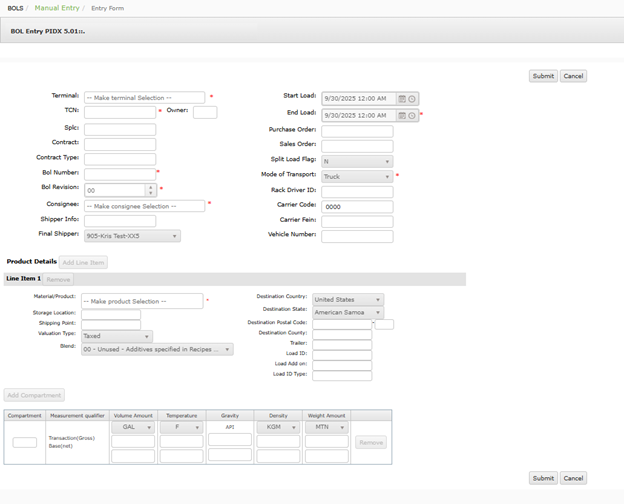
| Field | Description | ||
| Terminal: | Contains the terminal name as setup in TABS.
This is a required field. |
||
| TCN: | Displays the Terminal Control Number (TCN). This field is system-generated once the Terminal ID is entered.
This is a required field. |
||
| SPLC: | Displays the Standard Point Location Code (SPLC) associated with the terminal selected. This is a required field. | ||
| Owner: | Displays the terminal’s TABS owner code. This is a required field. | ||
| Contract: | Displays the contract number for the order, if applicable. | ||
| Contract Type: | Displays a 4 digits number associated with the contract. This field is required if Contract is entered. | ||
| BOL Number: | Provides the number of the Manual BOL. This is a required field. | ||
| BOL Revision: | Identifies the revision (01-99), if the BOL is a revision of a previously transmitted BOL.
Defaults to 0. Options available via dropdown. This is a required field. |
||
| Consignee: | Indicates the consignee number for the manual BOL. The Consignee number has a maximum of 14 digits.
This is a required field. |
||
| Shipper Info: | Various shipper defined information. | ||
| Final Shipper ID: | Specifies the final shipper ID. This field defaults to the 3-digit Suppliers seller ID.
This is a required field. |
||
| Start Load DateTime: | Displays the date/time (MM/DD/YYYY) (HH:MM AM/PM) the load began.
Defaults to today’s date at midnight. This is a required field. |
||
| End Load DateTime: | Specifies the date/time (MM/DD/YYYY) (HH:MM AM/PM) the load completed. This field must be at least 1 minute AFTER the start load date time.
This is a required field. |
||
| Destination State Code: | Defines the 2-digit state abbreviation.
This is a required field. |
||
| Purchase Order Number: | Provides the Purchase Order number, if applicable. | ||
| Sales Order: | Provides the Purchase Order number, if applicable. | ||
| Split Load Flag: | Indicates a split load where compartments on the same truck are loaded from different lanes at a terminal requiring the driver to card in and card out as it moves from lane to lane to complete a load. Y indicates split load.
Defaults to N. This is a required field. |
||
| Mode of Transport: | Identifies the transport method for the BOL. | ||
| Rack Driver ID: | Indicates the driver’s identification number within the Terminal Automation System (TAS). | ||
| Carrier Code: | Specifies the Standard Carrier Alpha Code (SCAC) to identify the carrier. If unknown, use 0000.
Defaults to 0000. This alpha-numeric field is required. |
||
| Carrier FEIN: | Identifies the Carrier’s Federal Employer Identification Number. Use the 9-digit FEIN followed by the letter F. If the carrier does not have a FEIN, use the carrier’s Social Security Number followed by the letter S. If unknown, use 000000000U.
Defaults to 000000000U. This is a required field. |
||
| Vehicle Number: | Identifies truck, tractor or tank truck related configurations. Any trailer is identified in the Container Number -1 or -2 fields below.
For non-truck related movement this is the transport’s ID number. |
||
| Material/Product: | Contains the alpha-numeric code that identifies the product loaded. Codes used are the Oil Industry Common PIDX Product Codes.
This is a required field that must be in upper case. |
||
| Storage Location: | Available if Mapping is turned on. This is a supplier defined value. | ||
| Shipping Point: | Location Identifier for the terminal. | ||
| Valuation: | Identifies if the material/product is taxed or untaxed. | ||
| Blend: | Code that indicates there has been modification to the product. | ||
| Destination Postal Code: | Identifies the postal code associated with the product destination. | ||
| Destination County: | Displays the destination county. | ||
| Trailer: | Identifies the trailer for the product. | ||
| Load ID: | A unique reference number of a loading linked to a contract or sales order. | ||
| Load Add on: | Shipment number of the load. | ||
| Load ID Type: | Identifies the type of load. | ||
| Compartment: | Identifies the compartment for the product. | ||
| Measurment Qualifier: | Identifies the measurement type for the product. | ||
| Volume Amount: | Identifies the amount of product loaded. | ||
| Temperature: | Defines one implied decimal position for temperature.
For example: 600 = 60.0 °or 1002=100.2 °. |
||
| Gravity: | Contains one implied decimal position for gravity.
For example, 1.014 = 1014 or 0.780 = 0780. |
||
| Density: | Identifies the density unit of measure. | ||
| Weight Amount: | Identifies the weight unit of measure. | ||
Uploading Multiple Manual BOLs
Multiple BOLs can be uploaded via a spreadsheet. Here is how to upload multiple BOLs:
DOWNLOAD AND POPULATE TEMPLATE
- In the Select Action drop-down list, select Upload Multiple BOLs.
- Click Download template.
- Enter your data into the spreadsheet template and save. Data elements and definitions are provided below.
UPLOAD BOLs
- In the Select Action drop-down list, select Upload Multiple BOLs.
- Click
 .
. - Select the file containing the data.
- Click
 to process the BOLs.
The manual BOL is now displayed in the BOL Viewer, Credit and/or Product Allocations. It is also available to be downloaded in the Suppliers Batch BOL job.
When creating multiple BOLs for uploading, be sure to enter the date and time in the format specified on the screen. The date/time format is based upon the user’s culture.
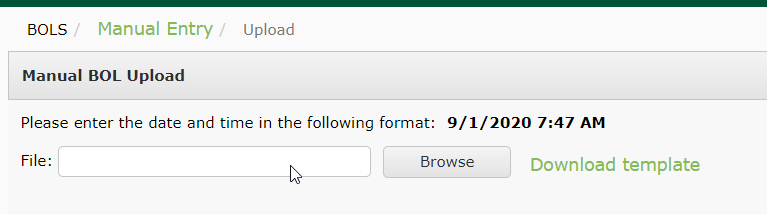
The following fields are available on the Manual BOL Upload:
| Field | Description | ||||
| Type: | Identifies if the load is a Shipment or Contract. | ||||
| BOL Number: | Provides the number of the BOL being submitted. 30AN
This is a required field. |
||||
| BOL Revision: | Provides the revision number for the BOL being submitted. 2N 0-99
This is a required field. |
||||
| SPLC: | Either SPLC or TCN is required. 6N | ||||
| TCN: | Either SPLC or TCN is required. 9N
TCN is required for PDXBOLv5. |
||||
| Owner: | This identifies the owner of the terminal. 6N
This is a required field if SPLC is entered above. |
||||
| Contract Number/
Shipment ID: |
Identifies the contract number or shipment ID if previously entered.
Contract Number 32AN Shipment ID 10AN |
||||
| Contract Type/
Shipment Document Type: |
Identifies the contract type or shipment document type if previously selected.
Contract Type 4AN Shipment Document Type 40AN |
||||
| Consignee Number: | Identifies the consignee number for the BOL. 18AN
This is a required field. |
||||
| Start Load Date: | Indicates the date the load began. This value should be entered in the user’s culture format.
This is a required field. |
||||
| Start Load Time: | Indicates the time the load began. This value should be entered in the user’s culture format.
This is a required field. |
||||
| End Load Date: | Indicates the date the load ended. This value should be entered in the user’s culture format.
This is a required field. |
||||
| End Load Time: | Indicates the time the load ended. This value should be entered in the user’s culture format.
This is a required field. |
||||
| Purchase Order Number: | Identifies the purchase order number associated with the BOL. 30AN | ||||
| Sales Order Number: | Identifies the sales order number associated with the BOL. 16AN | ||||
| Split Load Flag: | Identifies if it was a split load. Options available via dropdown.
This is a required field. |
||||
| Shipper Info: | Identifies the shipper. 10AN | ||||
| Final Shipper: | Provides the TABS ID of the final shipper of the load. 3N
This is a required field. |
||||
| Mode of Transport: | Identifies the mode of transport for the BOL. Options available via dropdown.
This is a required field for PDXBOLv5. |
||||
| Rack Driver ID: | Provides the rack driver ID. 20AN | ||||
| Carrier Code: | Identifies the carrier code for the BOL. 4N
This is a required field. |
||||
| Carrier FEIN: | Identifies the carrier FEIN for the BOL. If unknown, use 000000000U 10AN | ||||
| Vehicle Number: | Identifies the tractor or tank truck for the BOL. 20AN | ||||
| Material Code: | Identifies the TABS product code for the BOL. Options available via dropdown.
This is a required field. |
||||
| Storage Location: | Provides the storage location. 20AN | ||||
| Shipping Point: | Provides the shipping point. 30AN | ||||
| Valuation Type: | Identifies the valuation type for the BOL. Options available via dropdown.
This is a required field for PDXBOLv5. |
||||
| Delivery ID: | Identifies the delivery ID if submission type is Shipment. 30AN | ||||
| Delivery Line Item: | Provides the delivery line item if submission type is Shipment. 6AN | ||||
| Delivery Document: | Provides the delivery document if submission type is Shipment. 30AN | ||||
| Destination Country: | Identifies the destination country. Options available via dropdown.
|
||||
| Destination State: | Identifies the destination state. Options available via dropdown.
|
||||
| Destination Postal Code: | Identifies the destination postal code. 10AN | ||||
| Destination County: | Identifies the destination county. 30AN | ||||
| Trailer: | Provides trailer information. 32AN | ||||
| Load ID: | Provides the load ID. 30AN | ||||
| Load ID Add-On: | Provides the load ID add-on. 20AN | ||||
| Load ID Type: | Provides the load ID type. 20AN | ||||
| Blend: | Identifies the blend. Options available via dropdown.
This is a required field for PDXBOLv5. |
||||
| Compartment Number: | Identifies the compartment number. 3AN
|
||||
| Gross Volume Amount: | Provides the gross volume amount. 11,2N
This is a required field. |
||||
| Net Volume Amount: | Provides the net volume amount. 11,2N
This is a required field. |
||||
| Volume Unit of Measure: | Provides the volume unit of measure. Options available via dropdown.
This is a required field. |
||||
| Gross Temperature: | Provides the gross temperature. 3N | ||||
| Gross Temperature Sign: | Provides the gross temperature sign. Options available via dropdown. | ||||
| Net Temperature: | Provides the net temperature. 3N | ||||
| Net Temperature Sign: | Provides the net temperature sign. Options available via dropdown. | ||||
| Temperature Measurement Type: | Identifies the temperature measurement type. Options are F or C.
This field is required if temperature column is not null. |
||||
| Gross Gravity: | Identifies the gross gravity. 4,3N | ||||
| Net Gravity: | Identifies the net gravity. 4,3N | ||||
| Gravity Measurement Type: | Provides the gravity measurement type. Option is available via dropdown. | ||||
| Gross Density: | Identifies the gross density. Options available in dropdown. | ||||
| Net Density: | Identifies the net density. Options available in dropdown. | ||||
| Density Measurement Type: | Identifies the density measurement type. Options available in dropdown. | ||||
| Gross Weight Amount: | Identifies the gross weight amount. 11,2N | ||||
| Net Weight Amount: | Identifies the net weight amount. 11,2N | ||||
| Weight Unit of Measure: | Identifies the weight unit of measure. Options available in dropdown. | ||||
Create BOL from Existing Contract or Shipment
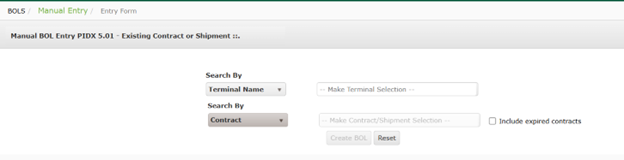
To create a manual BOL from an existing contract or shipment, select that option from the dropdown menu.
- Select the terminal.
- Select the contract
- Click Create BOL
- A template will display.
- Fill in the fields as shown under Creating a Single Manual BOL.
Create Empty Contract BOL
To create a contract BOL manually:
- Select terminal
- Select existing contract
- Click Create BOL
- Fill in the BOL header data. If the BOL is based on an existing contract, some of the data is already filled in with data that is retrieved from the Contract. Values are the same as Creating a Single Manual BOL.
Create Empty Shipment BOL
To create a shipment BOL manually:
- Select terminal
- Select existing shipment
- Click Create BOL
- Fill in the BOL header data. If the BOL is based on an existing shipment, some of the data is already filled in with data that is retrieved from the Contract. Values are the same as Uploading Multiple Manual BOLs