About DTN Storefront – Sellers
DTN’s Storefront allows suppliers to present a cohesive view of alerts, allocations, contracts, forecast, loading data, pre-orders and terminals to their customers and internal users. When suppliers access is granted, users can make informed and strategic decisions regarding their day-to-day and long-term activity.
Setting up DTN Storefront
Upon setup by DTN, your system administrator will receive a welcome email to DTN’s Identify Management Tool (IMT). Your system administrator can then create access for internal or external users based on the functionality and level of access they should be given.
Configuring DTN Storefront for Internal Users
How to grant internal users access via the website
- Login to https://identity-management.auth.dtn.com/ using credentials provided in your welcome email.
- Select Licensed Users.
- Select Add User to open a setup form.
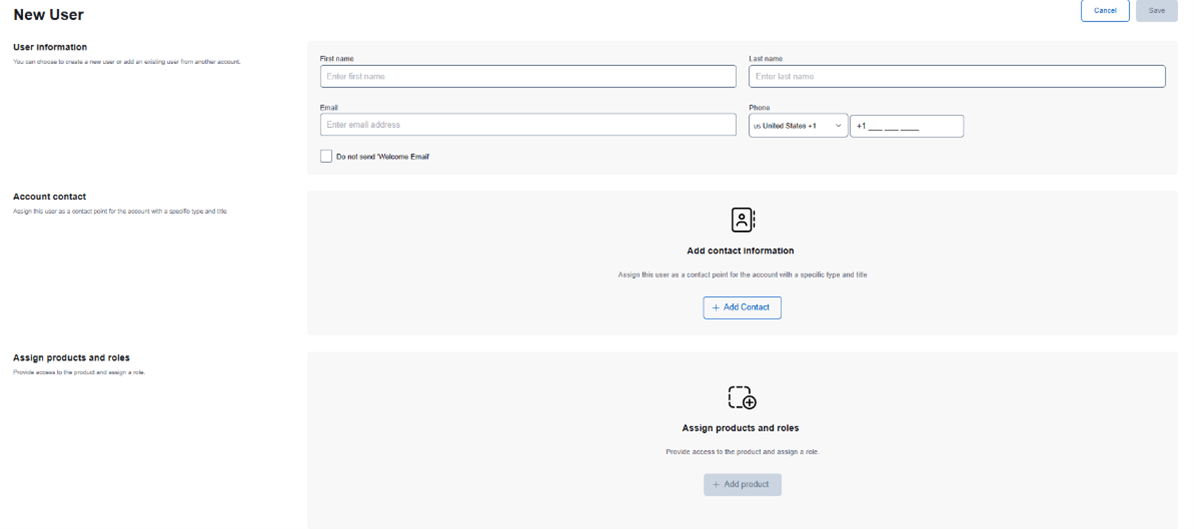
4. Enter first name, last name and email address. Phone numbers are optional.
5. A welcome email is automatically generated once user access is granted. To suppress this email, check Do not Send “Welcome Email”.
6. Select Add Contact to assign the user as a contact point for the account with a specific type and title. Options are:
Primary
Billing
Support
7. Select Add Product to assign products and roles to the user.
8. Using the Product dropdown menu, select Seller Storefront.
9. Using the Product Role dropdown, select the role a user should have. Options are:
Admin – Generic Admin role
Purchase – Provides the ability for a user to purchase products from DTN’s Sales & Marketing solution. This option should be selected for external users.
Supplier – Allows supplier to access DTN’’s Sales & Marketing solution. This option is typically used for internal users.
User – Generic User role
10. Select Save at the top of the page.
11. The user will now be displayed under Licensed Users.
How to grant internal users access via an import
1. Login to https://identity-management.auth.dtn.com/ using credentials provided in your welcome email.
2. Select Licensed Users.
3. Select Import Users.
4. Download a sample template. Options are:
CSV
JSON
XLSX
5. Enter user information on the selected template.
6. Drag & drop or click the icon to upload.

Configuring DTN Storefront for External Users
How to grant internal users access via the website
1. Login to https://partnerships.dtn.com/ using credentials provided in your welcome email.
2. Select Add Company.
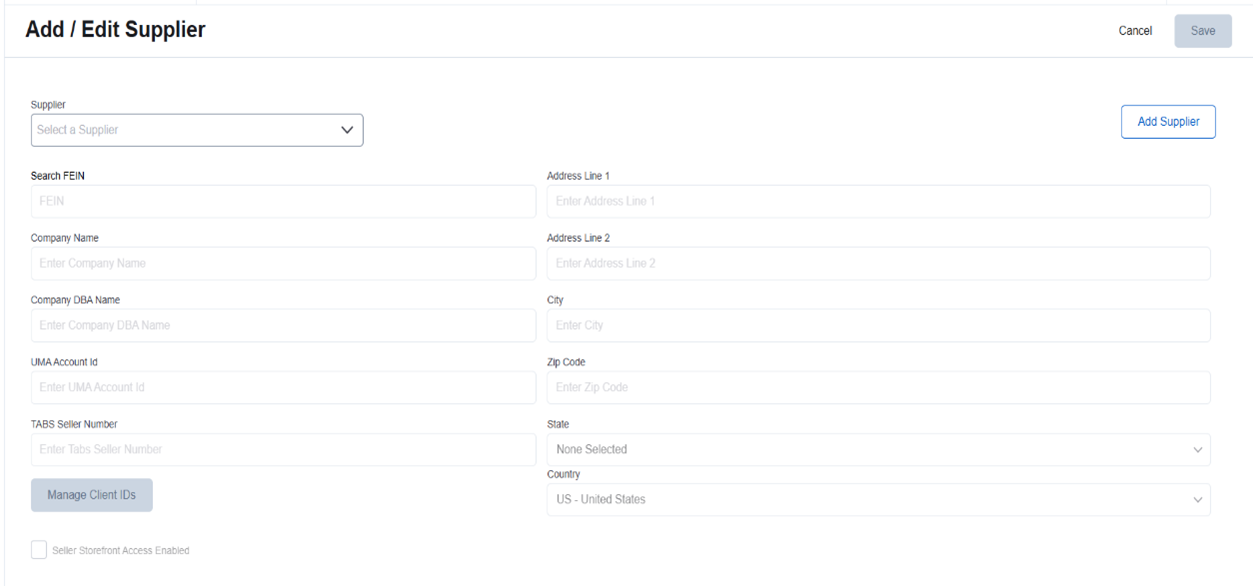
3. Enter the required fields. These fields are:
Company Name
DBA Name
FEIN
State
4. Fill in user details for the buyer account.
First Name
Last Name
5. Select Storefront under Product and grant role of USER.
6. User will receive a welcome email with a login link.
7. Buyers will be able to add additional users.