Master Data Module
The Master Data Module allows your ERP system to communicate with TABS to add, update and delete ShipTo, SoldTo and Credit account information.
Overview
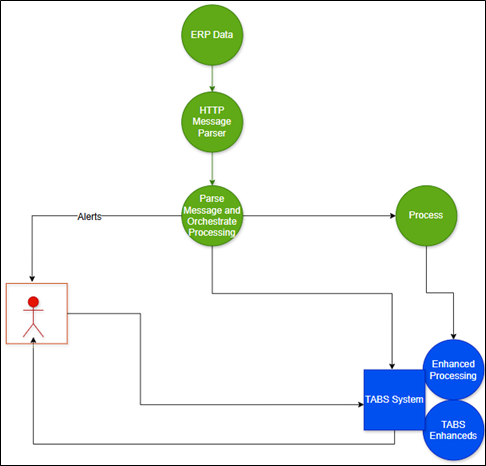
The Master Data module is data integration management with the ERP system.
The Master Data module addresses key needs required to manage large-scale DTN TABS implementations. A key problem for such implementations is the loading and ongoing maintenance of the required Master Data from the ERP to Core DTN TABS.
Master Data provides a Master Data feed module that takes an automated Master Data feed from the ERP and converts it into the data and structures needed for lifting controls in DTN TABS.
Initial Core DTN TABS setup
In order for the Master Data feed from ERP to update the DTN TABS databases, there needs to be an initial setup within Core DTN TABS for Terminals, Products, and Channel.
Terminal
Setup terminals within Core DTN TABS. See the DTN TABS Initial Setup – Database Training Manual for information on setting up terminals.
Note: For Master Data setup, the following fields are required in Terminal Details page: SPLC, Owner Code, Plant Number and the Is Master Data Active check box. If the Is Master Data Active check box is not selected, then any Master Data sent from the ERP system that is related to the terminal does not update Core DTN TABS until it is activated.
Products
All products assigned through Master Data must first be active within core DTN TABS. See the DTN TABS Initial Setup – Database Training Manual for information on setting up products.
Class of Trade Mapping
Master Data requires that all channels be setup with an abbreviation and that class of trade (COT) mapping be completed. See the DTN TABS Initial Setup – Database Training Manual for information on setting up channels.
Note: Each allocation COT maps to one or more numeric COT fields in the ERP data feed. Mapping is maintained between the Allocation COT used in DTN TABS and the ERP COT IDs.
Here’s how to map channels:
1. From the Data Management menu, select Mapping then Class of Trade from the dropdown. The Associate ERP Mapping page opens.
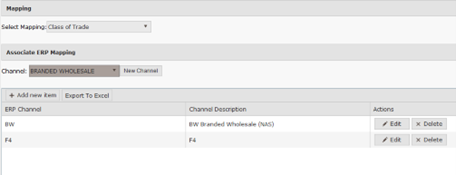
2. Select a channel from the Channel The associated ERP COT appears for that channel.
Note: To add a new channel, click  to open the Channels page. This page creates a channel which contains the channel code and description. This is an existing page in DTN TABS. When a channel is created, a consignee group is created for the new class of trade. The consignee group name matches the channel name.
3. Click 
4. Enter information in the ERP Channel and Channel Description
5. Click  This maps the ERP COT to the DTN TABS Channel.
6. To remove an ERP Channel (Class of Trade) Association, click 
Master Data Feeds
Through the Master Data module, ShipTo and credit data can be integrated from the ERP system into the Core DTN TABS database. All adds, changes, and deletes to this data in the ERP system are captured. ERP system Master Data is sent by XML or CSV file and is processed to update the Core DTN TABS system.
Master Data ShipTo Feed
Master Credit SoldTo
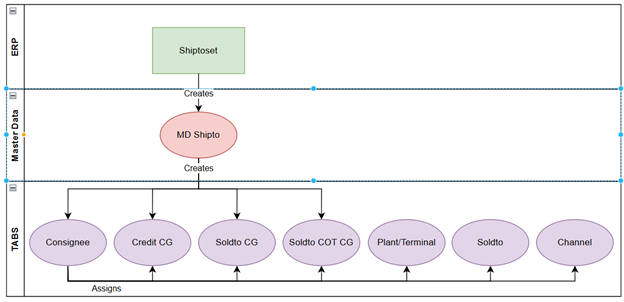
The Master Credit record within the ShipTo data feed creates the Master Credit Consignee Group which is required to manage and control a customer’s credit through DTN TABS. The data elements for a Credit Account (Credit Sold To) are:
- ShipTo Name
- ShipTo Number
- Credit Account ID
- Credit Account Name
- Tax Exempt Fed
- Active
- Locked Out
- Lockout Reason
SoldTo
The SoldTo in the ShipTo data feed creates a SoldTo Consignee Groups to be used in creating product allocations to control a customer’s lifting at terminals, to “lockout” a customer from lifting, to identify federal taxability and to indicate whether the SoldTo is active or inactive. The SoldTo Consignee Group is created by assigning consignee’s to their associated SoldTo Consignee Group. The data elements for a SoldTo are:
- ShipTo Name
- ShipTo Number
- SoldTo ID
- SoldTo Name
- Federal Tax Exempt
- Lockout
- Lockout Reason Text
- Active status
ShipTo
The ShipTo in the ShipTo data feed creates a ShipTo Consignee Group to “lockout” a ShipTo customer from lifting product, to identify state taxability, to state whether the ShipTo is active or inactive and to assign the terminals and products that can be lifted. Specifics around the products contract are also provided. The ShipTo Consignee Group is created by assigning consignees to the ShipTo Consignee Group. The required data elements for ShipTo are:
- ShipTo Name
- ShipTo Number
- Sales Area – Sales Org
- Sales Area – Distribution Channel
- Sales Area – Division
- Channel
- Locked Out
- Lockout Reason
- Active
- Tax Exempt State
- Address 1
- Address 2
- City/Town
- State/Locality
- Postal Code
- FEIN
- List of authorized terminals
- Authorized PIDX Codes per terminal
- Credit Terms
- Country
ShipTo Terminal Product
The ShipTo Terminal Product provides the association of ShipTo customers to terminals and products, and contains the following fields:
- Plant Code (maps to terminal SPLC, Owner)
- PIDX Code/Product Family (PIDX code, Product Family)
- Contract Number
- Effective Date
- End Date
- Payment Terms
- Contract Gallons
Master Data Credit Feed
Details associated with a customer’s credit are sent using Master Data and are used to create limits for your customers within DTN TABS. The data provided in this feed is shown below:
- Credit Account ID
- Credit Account/Payor Name
- Credit limit
- Receivables
- Orders
- Special Liabilities
- Valued BOLs
Master Data Customer Feed
Because MD Contracts requires a considerable amount more contract data, along with different mapping requirements for channel mapping, the ShipToSet will not be used for customer setup. Instead, customer information will be split out into new message: <CUSTOMER> for adding ShipTo’s and SoldTo’s.

SoldTo
The SoldTo in the Customer data feed creates a SoldTo Consignee Groups to be used in creating product allocations to control a customer’s lifting at terminals, to “lockout” a customer from lifting, to identify federal taxability and to indicate whether the SoldTo is active or inactive. The SoldTo Consignee Group is created by assigning consignee’s to their associated SoldTo Consignee Group. The data elements for a SoldTo are:
- ShipTo Name
- ShipTo Number
- SoldTo ID
- SoldTo Name
ShipTo
The ShipTo in the Customer data feed creates a ShipTo Consignee Group to “lockout” a ShipTo customer from lifting product, The ShipTo Consignee Group is created by assigning consignees to the ShipTo Consignee Group. The required data elements for ShipTo are:
- ShipTo Number
- ShipTo Name
- Sales Manager Number
- Sales Manage Name
- Sales Manager email
- Sales Manager Phone
- Address 1
- Address 2
- City/Town
- State/Locality
- Country
- Postal Code
- VAT Number
Master Data Contract
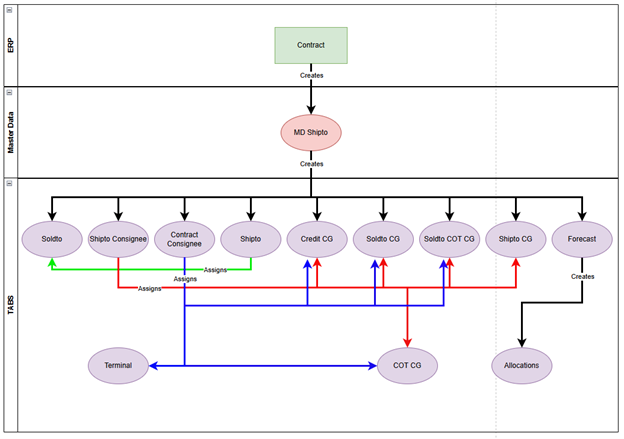
Contracts will be downloaded from SAP to support creating forecasts, allocations, consignees, terminal products, and terminal consignees. The entire contract will be sent when submitted to Master Data regardless if it is a new contract or an update to an existing contract. This feature design document will cover the accepting of the Contract message, validation of the message through the XSD, and the parsing process which will map and validate the Contract data with TABS data, and save it in the Master Data tables.
SoldTo
The SoldTo in the Contract data feed creates a SoldTo in TABS, Soldto Credit Consignee group, Soldto Consignee Group, Soldto COT Consignee group, to be used in creating Forecast and product allocations to control a customer’s lifting at terminals, to “lockout” a customer from lifting. The SoldTo Consignee Group is created by assigning consignee’s to their associated SoldTo Consignee Group. The data elements for a SoldTo are:
- ShipTo Name
- ShipTo Number
- SoldTo ID
ShipTo
The ShipTo in the Contract data feed creates a Shipto Consignee, A Shipto that is assigned to the Soldto, and the Shipto Consignee group.
- ShipTo ID
Contract
The Contract in the Contract data feed creates the Contract, Contract Consignee, and assigns that contract Consignee to Credit Consignee Group, Soldto Consignee Group, Soldto COT Consignee group. The Contract is also Used to Create a forecast for the Contract Consignee/product/terminal
- Contract Number
- Contract Type
- Contract Name
- PO Number
- Shipping Condition
- Shipping Condition Description
- Payment Term Days
- Destination Type Code
- Trans Arrangement Code
- Effective Date
- Expiration Date
- Partners
- Partner Type
- Partner ID
- Line Items
- Line Item Number
- Plant Code
- Material Code
- Handling Type
- Active
- Amount Limit
- Unit of Measure
- Tolerance Level Lower
- Tolerance Level Upper
- Storage Location
- Shipping Point
- Valuationtype
- Incoterms
- Line Item Load IDs
- Load ID
- Load ID Add on
- Hauler ID
- Hauler Name
- Effective Date
- Expiration Date
- Load ID Type
- Terminal Load ID
Contract Class of Trade Mapping
The Contract Class of Trade Mapping checks against the mappings in TABS to determine the channel.
- Sales Org
- Distribution Channel
- Sales Division
- MOT
Master Data Shipment Feed
Shipments are order types that are used to plan one exact truck to be completely loaded. Truck and driver details, as well as all product volumes are entered per compartment. Shipments are typically created by a customers planning/scheduling team.
Shipment
- Shipment ID
- Doc Type
- Priority
- Expected Pickup Date
- Haulier Id
- Plant Code
- Truck Id
- Sales Org
- Driver Id
- Trip Ticket
- Load Id
- Load ID Addon
- Load Id Type
- Effective Date
- Expiration Date
Compartment
- Compartment Number
- Trans Unit Number
- Material Code
- Amount
- Uom
- Storage Location
- Transport Unit Type
- Sequence Number
Delivery
- Delivery Id
- Order Id
- Line Item Number
- Location Id
- Amount
- Uom
- Shipto Id
- Soldto Id
Master Data Supply Outage Feed
Supply Events Notification page supports creating, updating, and displaying supply events. Supply Event Notification provides information about both planned and unplanned terminal disruptions to the individuals who need to know. This allows them to react to potential issues before they become a crisis and impact the bottom line. Both internal personnel and business partners can be notified via pro-active, targeted emails or SMS messages containing the specific information they need to react and avoid costly issues at the terminal. In addition to notifications, terminal statuses are also communicated within DTN TABS and customer facing Allocation Viewers to ensure the information is visible in real-time.
Outage
- Outage Id
- Plant Code
- Location Type
- Plant Code
- Terminal group Id
- Product Type
- Product
- Product Group
- Product Family
- Effective Date
- Expiration Date
- Created Date
- Outage Type
- Backup Terminals
- Allocation Comments
- Status Code
- Enable Load Request
- Media
- Alert
- All
- Default
- Display
- Internal
- Alert Time
- Limit To Days In Advance
- Schedule
- Days In Advance 1
- Days In Advance 2
- Notify
- Channels Id
- Outage Message
- Culture
- Message
Master Data Block Feed
The Master Data Block Feed is used when contracts are turned on in order to process customer blocks at the SoldTo, ShipTo, and Credit levels.
Block
- Block Level
- Soldto
- Shipto
- Credit
- ERP_Id
- Lockout Indicator
- Lock Reason
- Active
Master Data Material Master Feed
The Material Code Feed is designed to use your ERP or billing system Material/PIDX codes to define DTN TABS products instead of using the terminal-defined product codes (PIDX or other code). Then, each material code can be mapped to different product code translations depending on the connection type (i.e. Terminal, CPDP, GXS, etc.).
Material Master
- Material Code
- Description
- Material Group
- Material Type
- UOM
- Material Item
- Description
- Dist Channel
- Sales Org
- Division
- Culture
Process to Update TABS
As the ERP Master Data feed is divided, the Master Data Module determines what changes need to be made in the DTN TABS database. Actions that could occur based on the Master Data Feed are:
- Add/Modify/Delete SoldTo
- Add/Modify/Delete CreditEnhanced
- Add/ModifyDelete ShipTo
- Add/Modify/Delete Consignee
- DeleteAllocationOrHeader
- Add/Modify/Delete ConsigneeGroup
- Add/Modify/Delete Product
- Assign/Remove Consignee To/From CG
- Add/Modify/Delete Allocation Header
- Assign/Remove Product To/From Terminal
- Assign/Remove ShipTo To/From Terminal
- Add/ModifyDelete Material Codes
- Add/ModifyDelete Pre-Orders
- Add/ModifyDelete Supply Events
DTN TABS Elements being created
The Master Data module will maintain the DTN TABS Consignees and Consignee Groups required for credit and product allocations based on the customer information from the ERP ShipTo data feed. DTN TABS Master Data will assign consignees to the correct Consignee Groups for lifting controls based on ShipTo attributes.
Note: Core DTN TABS isn’t updated unless the Is Master Data Active check box on the Terminal Details panel is selected.
Credit Consignee Group
A consignee group is needed for credit allocations. The SoldTo using the associated consignee group is not used to manage credit. The SoldTo and the associated consignee group are used for lockouts and active flag. Below is an example of the naming convention:
Credit Account Description + Credit Account_Id + “:CREDIT”
Example: MUSKET CORP 1028020:CREDIT
SoldTo Consignee Group
A consignee group is needed for each SoldTo to represent all business for just that SoldTo. It is needed to enforce manual lockouts and inactive status for its child ShipTo Accounts. Below is an example of the naming convention:
Concatenate: ERP Sold_To_Description + Sold_To_Id
Example: MUSKET CORP 1028020
SoldTo COT Consignee Group
A consignee group is required for each COT a ShipTo does business in. It enforces product allocations against loads the customer lifts within the COT. Below is an example of the naming convention:
Concatenate: ERP Sold_To_Description + Sold_To_Id + Class of trade abbreviation (use space as delimiter)
Example: MUSKET CORP 1028020 I&W
Consignee
A Consignee will be created for each unique ShipTo Number sent in the ERP feed. After the consignee is created:
- Assigns ShipTo
- Assigns SoldTo and assigns to SoldTo consignee group
- Assigns Channel and assigns to Channel consignee group
- Assigns to Credit consignee group
- Assigns to Plant
Below is an example of the naming convention:
Concatenate: ERP ShipTo_Name + ERP ShipTo_NUM + State abbreviation.
Example: AVAK SERVICE STATION INC 1035717 NV
Using Master Data from DTN TABS
ShipTo setup
The DTN TABS ShipTo/SoldTo/Credit Accounts can be managed from the DTN TABS user interface (UI) or from the ERP ShipTo data feed. The ShipTo page search for ShipTos, creates a report listing, adds, edits, and deletes ShipTo records. Any changes or Adds made to the ShipTo Page within the DTN TABS UI, could be overwritten by the ERP feed. Since all data should be sent through the ERP ShipTo feed, adding or editing through the ShipTo page will be very rare.
Note: This ShipTo page is Master Data and is not Core DTN TABS. If a Master Data feed is sent in and the Is Master Data Active check box in the Terminal Setup panel is not selected, then Master Data updates (it shows on the ShipTo page) but Core DTN TABS isn’t updated until Is Master Data Active check box on the Terminal Details panel is selected.
ShipTo Details
Below are the details of the Data Management > Master Data ShipTos Details panel.
- ShipTo Name
- Identifies the ShipTo within the ERP System.
- ShipTo Number
- Defines the ERP account number.
- Sales Area – Sales Org
- Indicates the sales area by organization.
- Sales Area – Distribution Channel
- Specifies the distribution channel.
- Sales Area – Division
- Displays sales area by division.
- Channel
- Creates the channel during the Core DTN TABS Channel setup.
- Locked Out
- Indicates whether the ShipTo lock is turned enabled.
- Lockout Reason
- Describes the reason for the lockout, If the Locked out check box is selected. If selected, this field is required.
- Active
- Displays if the Ship is active or not. No ShipTo is deleted from Master Data if cancelled from the ERP, the active flag is disabled.
- Tax Exempt State
- Determines when the ShipTo is tax exempt. Used for enhanced credit.
- Address One, Address Two, City/Town, Country, State/Locality, Postal Code
- Contains the address from the ERP System.
- FEIN
- Indicates the Federal Employee Identification Number (FEIN) From the ERP System.
SoldTo selection within ShipTo details
Within the ShipTo page, users can edit or create new SoldTos. The following options become available when you click the Manage or New links.

Here’s how to create a new SoldTo from the ShipTo page:
1. Select the SoldTo that is already present in Core DTN TABS.
2. Click the New The Active check box is selected and the Tax Exempt Status and Locked Out check boxes are not selected by default.
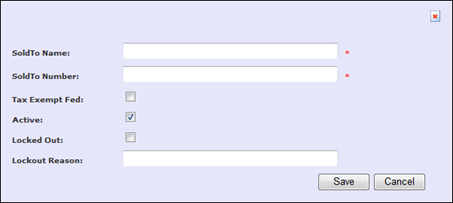
3. Enter the following:
- SoldTo Id
- Displays a new SoldTo number.
- SoldTo Name
- Provides a new SoldTo Name
- Tax Exempt
- Determines if the ShipTo is tax exempt. Used for enhanced credit.
- Active
- Identifies if the SoldTo is active or not.
- Locked Out
- Indicates whether the SoldTo lock is turned off or not.
- Lockout Reason
- Describes the reason for the lockout, If the Locked out check box is selected. If selected, this field is required.
1. Click 
2. Click the Details link to view and edit the information about a SoldTo.
3. Make any changes and click
4. Click the Manage link to search for existing SoldTos.
5. Enter the keyword and click 
Credit Account Selection within ShipTo details
Within the ShipTo page the User can edit or create new credit accounts. The following options become available when you click the Manage or New links.

Here’s how to create a new credit account from the ShipTo page:
- Select the Credit Account in Core DTN TABS.
- Click the New The Active check box is selected and the Tax Exempt Status and Locked Out check boxes are not selected by default.

- Enter the following:
- Credit Account Number
- Displays the new credit number.
- Credit Account Name
- Displays the new credit name.
- Active
- Defines if the credit account is active or not.
- Tax Exempt Fed
- Determines if the credit is tax exempt. Used for enhanced credit.
- Locked Out
- Indicates whether the Credit lock is turned off or on.
- Lockout Reason
- Describes the reason for the lockout, If the Locked out check box is selected. If selected, this field is required.
4. Click .
5. Click the Details link to view and edit the information about a credit account.
6. Make any changes and click ,
7. To search for existing credit accounts, click the Manage link.
8. Enter the keyword and click .
Associated Consignee
The Associated Consignee panel displays either the one to one relation between the ShipTo and the consignee or the user’s customer.

Note: It is estimated that most ShipTos map to a single Consignee for terminal lifting. ShipTos that have more than one consignee are not managed in the supplier’s ERP system and are manually setup in DTN TABS using the Master Data ShipTo pages or using ADMLOD to upload the Consignees with the associated ShipTo relationship.
If it is a customer of a user, click  . The Core DTN TABS Seller Consignee Details page opens and you can then set up the consignees. When you assign the ShipTo from this page, the link and the newly added consignee appear as a consignee associated to the ShipTo.

Note: The system automatically makes the correct associations upon the ShipTo association within this panel connecting the new consignee to the appropriate Channel or SoldTo group.
Associate Terminal/Product
If Using basic Master Data
Here’s how to associate a terminal and product with a ShipTo record.

- From the Data Management > Master Data ShipTos > Associate Terminal/Product panel, click
 to select a terminal and product.
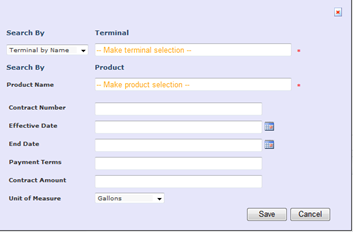
- Enter the following:
- Terminal
- Describes the terminal from Core DTN TABS.
- Product
- Specifies the product from Core DTN TABS.
- Contract Number
- Provides the ERP Contract number.
- Effective Date
- Indicates the ERP Contract Effect Date.
- End Date
- Contains the ERP Contract End Date.
- Payment Terms
- Identifies the ERP Payment Terms.
- Contract Gallons
- Defines the ERP Contract Gallons.
- Unit of Measure
- Displays the unit of measure.
Associated Contracts
If Using Contract Master Data, this section will show What contracts have been associated to the shipto.

Here’s how to edit the contract associated to the ShipTo record.
- From the Data Management > Master Data ShipTos > Associated Contract panel, click Edit link.
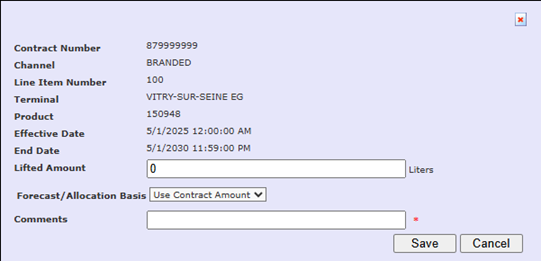
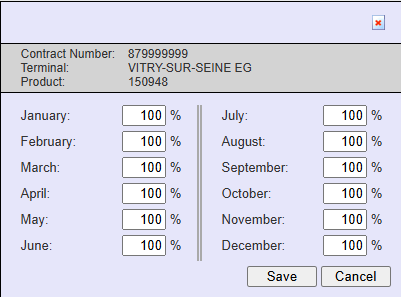
2. You can also Change the contract Schedule
a. From the Data Management > Master Data ShipTos > Associated Contract panel, click Schedule link. Change the % for each month.
Reports
Master Data Audit Report
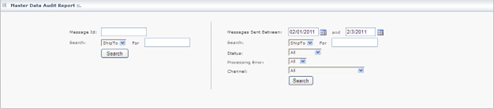
The Master Data Audit Report is used for troubleshooting purposes and allows you to view the results of each Master Data feed transaction. The search page is split into 2 different search types:
- Specific message ID
- Date search
Message ID Search
This search is used if the message ID is known. The message ID can be found in the Master Data Alerts or from the date search.
- Message Id
- Identifies the message created by the Master Data process. This is a required field.
- Search Arrow
- Searches for a ShipTo, SoldTo, or Credit within a message ID.
Date Search
This search allows you to search all Master Data transactions by date with the following filters:
- Message sent Between
- Specifies the dates to search.
- Search
- Provides the ability to search for a ShipTo, SoldTo or Credit.
- Status
- Filters for a processing status of:
- All
- Complete
- Error
- Ready
- In Process
- Filters for a processing status of:
- Processing Error
- Sorts for processing errors of Yes or No.
- Channel
- Filters for Channel.
The report displays all actions from the Master Data feed from the ERP system or any changes or adds from the Master Data ShipTos page that includes all adds, changes, and processing commands.
Master Data Terminal Audit Report
The Master Data Terminal Audit Report compares data between Master Data and core DTN TABS by terminal.
This report should be used prior to enabling a terminal in Master Data. It shows the differences between Master Data and DTN TABS. After a terminal has been activated for Master Data, the report determines if there are any differences between DTN TABS and Master Data.

- Terminal
- Describes the terminal from Core DTN TABS.
- Only Show Differences
- Displays all data from that terminal, if this options is disabled.
- If it is enabled, it displays all the differences between Master Data and Core DTN TABS which would indicate that the Master Data Active flag in the Terminal Setup page is turned off.
Master Data Shipment Report
The Master Data Shipment Report show a summary of all shipment details that have been received through Master Data and stored in TABS.

- Country
- Specifies the country or countries.
- Search By Terminal
- Provides the ability to search for a Terminal Name, Terminal SPLC, Terminal City or Terminal Plant.
- Search By Product
- Provides the ability to search for a Product or Product Group.
- Search by Customer
- Provides the ability to search for SoldTo or ShipTo.
- Haulier
- Identifies the haulier created by the Master Data process.
- Shipment Number
- Identifies the Shipment Number created by the Master Data process.
Pre-Orders Report
The Pre-Orders Report can view and search for pre-order that have been placed using the pre-order viewer and pre-orders that have been imported from country boxes.
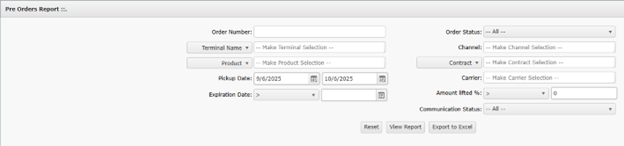
- Order Number
- Identifies the Order created by the Master Data process.
- Order Status
- Provides the ability to search for an Open, Loaded, Cancelled, Hold or Expired.
- Search By Terminal
- Provides the ability to search for a Terminal Name, Terminal SPLC, Terminal City or Terminal Plant.
- Channel
- Provides the ability to search by Channel.
- Search by Product
- Provides the ability to search for a Product or Product Group.
- Search by Customer
- Provides the ability to search for a SoldTo, ShipTo or Contract.
- Pickup Date
- Carrier
- Expiration Date
- Amount Lifted %
- Provides the ability to search by a percentage lifted.
- Communication Status
- Provides the ability to search for All, Not Sent, Outbound Conversion Failed, Sending to Terminal, Send to Terminal Failed, Send to Terminal OK, Change not Sent and Incomplete Trip.
Master Data Contract Report
The Master Data Contract Report will show a summary of all the contract details that are stored in TABS. This report shall also include the actual liftings against the contract.
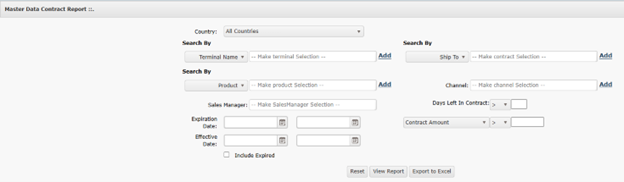
- Country
- Specifies the country to search
- Search by Terminal
- Provides the ability to search for a Terminal Name, Terminal SPLC, Terminal City or Terminal Plant.
- Search by Customer
- Provides the ability to search for a SoldTo, ShipTo or Contract.
- Search by Product
- Provides the ability to search for Product or Product Group.
- Channel
- Provides the ability to search by Channel.
- Sales Manager
- Days Left in Contract
- Expiration Date
- Contract Amount
- Effective Date
- Include Expired
Lockouts
The ERP system has various SoldTo, Credit Account, and ShipTo level lockout flags that are used to prevent a customer from loading. When any of these flags are set in the ERP system, the next scheduled Master Data Feed sends the SoldTo, Credit Account, or ShipTo record with its lockout flag set. They also send a lockout text to indicate the reason for the lockout. DTN TABS manages all lockouts, no matter the reason information, in the same manner.
ShipTo
If a ShipTo level Lockout is sent by either the Master Data Feed or by turning on the check box within the ShipTo Setup, Master Data creates a ShipTo consignee group with the name of the ShipTo, the ShipTo number, and assigns all consignees to that group. An Allocation point of All Terminals and the ShipTo consignee group that is created is set to Deny.
SoldTo
If a SoldTo level Lockout is set by either the Master Data Feed or by selecting the check box within the ShipTo Setup under SoldTo, Master Data uses the SoldTo consignee group to set the allocation to Deny for all terminals.
Credit
If a credit level Lockout is set by either the Master Data Feed or by turning on the check box within the ShipTo Setup under Credit Account, Master Data uses the Credit consignee group to set the allocation to Deny for all terminals.
Note: These lockouts can be set from within the ShipTo Setup page, the Lockouts are provided from the ERP Master Data feed. If a Lockout is entered in the ShipTo page manually and an ERP feed is then received by DTN TABS with no lockout flag, Master Data clears the lockout that was entered through the user interface. Address: Production – ftptabs.dtn.com