About Troubleshooting
This page is designed to assist you in resolving issues in DTN TABS. The information provided here is meant to be a starting point. You may find other ways to research issues as you get more comfortable with using the tools available to you.
The best tools for troubleshooting customer loading issues are found within the Reports page of DTN TABS. If your subscription includes the Load Assistance page, it can also be used to identify where the problem resides.
Some denials, however, can only be diagnosed using the reports available. Denials that can only be diagnosed using the reports in DTN TABS will have a notation of (R) in the header while others that are visible only to DTN TABS support or terminal personnel will have (S) in the header.
Resolving PDXR Deny Codes
Deny 01 – Invalid Seller ID (S)
For an Authorization Request, indicates that the Seller ID does not exist within DTN TABS as received from the terminal. Either the terminal is sending the wrong Seller ID or the Seller has not been established in the DTN TABS database. DTN PetroDex Support can work with the terminal to correct the Seller ID within the Terminal Automation System (TAS) or set up the Seller ID in DTN TABS.
Deny 02 – Invalid Shipper ID (R)
There are two main reasons a Deny 02 occurs:
- The terminal has incorrect data in the Seller/Final Shipper position. DTN TABS Support will work with all parties to get it resolved.
- The party in the Seller position has not properly configured an expected Third Party DTN TABS Support will assist in identifying what the expected rule should be and assist the parties in configuring the necessary information.
Deny 03 – Invalid Truck Number
This denial code does not appear in DTN TABS or logs at this time. It is not in use.
Deny 04 – Invalid Seller/Terminal (R)
There are two main reasons a Deny 04 occurs:
- The terminal ID is being sent incorrectly. The terminal is sending the Seller ID as the owner code vs the actual owner code or a bad SPLC. To resolve this, DTN TABS support will reach out to the terminal to get the owner code or SPLC corrected.
- The terminal ID is being sent correctly but the terminal setup in DTN TABS is not correct. DTN TABS Support will correct this by verifying the expected ID and, with your permission, update the information for you.
NOTE: DTN TABS Support requests that if you are adding a new terminal to your database, reach out to us for verification of the expected SPLC and Owner code as this can help make certain that your side is correct.
Deny 05 – Invalid Customer ID (R)
There are three main reasons a Deny 05 occurs:
- The consignee being sent by the terminal is not set up within your DTN TABS database.

You can see this by running the Transaction Log Pro report and noting the Consignee Name field is not populated. If the consignee value is valid, add this number to your DTN TABS database and associate it with the terminal. If the number is not valid, additional work will need to be done with all parties involved to get this corrected.
- The consignee exists in your database but is not assigned to the terminal in question.

This can be diagnosed by using the Transaction Log Pro report and noting that there is a name in the Consignee Name column. If you click the hyperlink for the consignee number, you will then be sent to the Seller Consignee Details page where you can see that the terminal (in this example Amarillo) is not in the assigned terminals list.
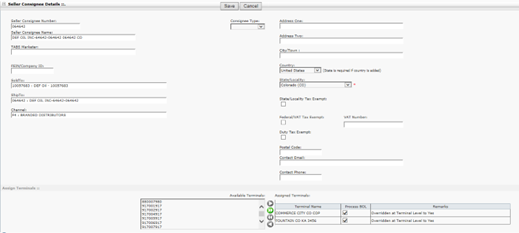
Assigning the terminal to the consignee then saving the record will resolve the issue.
- The consignee exists, the terminal is assigned to the consignee in question and a deny is still occurring. This is caused by Carrier Authorization Check, an optional feature in DTN TABS. You would need to look at the Admin > TABS Defaults page within DTN TABS to see if this option is turned on.
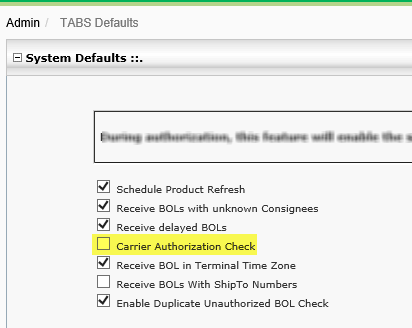
If this option is turned on, you will then need to determine if the SCAC code being received on the authorization record is correctly associated with the consignee in question.
In this case, you can see that there are no carriers assigned to this consignee. The resolution would be to add an association or change the option from Restricted to Allowed in the Assign Carriers pane above.
Deny 06 – Deny – No Check
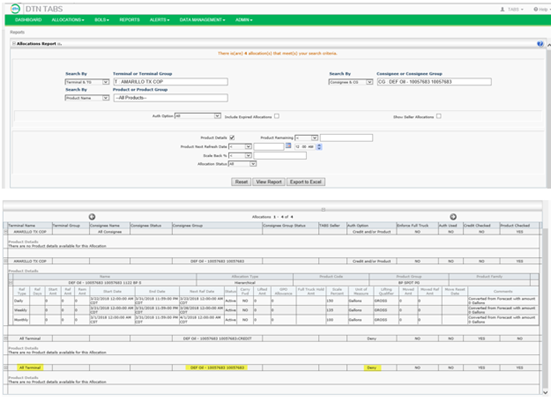
A Deny 06 only occurs if you have an authorization level that is set to Deny. The best way to diagnose the issue and find out where the Deny record is configured is to run the Allocations Report.

Remember the terminal and consignee receiving the deny get the broadest view of what is impacting your customer. Once in the report, select the terminal/consignee and then click  . Scroll through the results to find a record that says Deny in the Auth Option column as shown below.
Note: The values in the Terminal/Terminal Group columns and the Consignee/Consignee Group columns will direct you to the options to select in the Allocation/Manage pages.
Deny 07 – No Credit Record (Legacy Credit Users Only)
For an Authorization Request, a Deny 07 indicates the Apply Credit Allocations option in the Allocations Setup page was selected, but no credit allocation was created and attached to the allocation record. The seller needs to go the Allocations Setup page and either unselect the Apply Credit Allocations option or create and attach a credit allocation to the allocation record.
Deny 08 – No Product Record
There are three causes for this denial:
- Authorization Option is set to Credit and/or Product with Apply Product selected or only Product selected, but there is no product allocation associated with the record.
- Product allocations attached to the authorization points set to Credit and/or Product or Product have records attached but all records are past their expired dates. No Unenforced or Active periods are available for DTN TABS to clear products for loading.
- Product allocations attached to the authorization points set to Credit and/or Product or Product have records attached but all records are set to Inactive (Flat allocation periods only) with no Active or Unenforced periods available for DTN TABS to clear products for loading.
The best way to diagnose the issue and find out what specific allocation is causing the denial is to use the Allocations Report.

Remember the terminal and consignee receiving the deny in order to get the broadest view of what is impacting your customer. Select the terminal/consignee, then click . Scroll through the results to find a record that meets the criteria above.
Note: The values in the Terminal/Terminal Group columns and the Consignee/Consignee Group columns will direct you to the options to select in the Allocation/Product/Manage screens.
Deny 09 – Credit Limit Exceeded
This deny is caused by the credit allocation being exhausted.
Note: the customer getting the denial and verify the credit allocation by going to Allocations/Credit/Manage.
If you are not certain what credit record to look at, run the Allocation Report with the Terminal/Consignee and look for a record that has Yes in the Credit Checked field. If Yes is selected, then the consignee group to use in the Allocation/Credit/Manage page displays, or in the case of legacy credit, the options to select in the Allocation/Product/Manage page.
Note: Legacy credit users will then be able to find the correct credit record to update in the Allocation/Credit/Manage screen.
Deny 10 – Product Allocation Exhausted
This denial is returned when product allocations are in place and DTN TABS has no products that are approved for lifting. This can be caused by a few different factors.
- Allocations are exhausted. This can be diagnosed by running an Allocations Report using the terminal and consignee receiving the deny in the Transaction Log Pro Look for active product allocation(s) that show 0 (zero) or a negative value. Once these are determined, you can either edit the allocation(s) in question to adjust the records or issue a Global Product Override (GPO) in order to allow lifting to resume.
- In the Admin > TABS Defaults page, you have selected the option to Filter Products Authorized by Terminal Assigned Products:
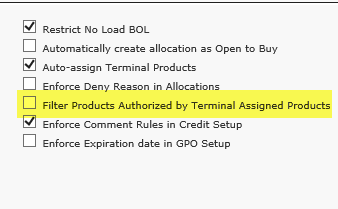
Verify the products assigned to the terminal to make certain that the family or PIDX product code(s) in the product group(s) you are using for your allocations are associated correctly. This can be done by looking at the Allocation Report, determining the record(s) that are active, verifying the product(s) contained in the groups, and then verifying that product(s) from the applicable allocations exists on the Data Management > Terminals page for the location.
- Your partner, 3rd party or Rack Marketer, is not approving you for the products that you have cleared. Make sure all of your allocations are correct and products are assigned to the terminal that apply before reaching out to your partners to verify allocations. DTN TABS Support is able to assist in determining where the issue lies if you cannot determine where the disconnect lies.
Deny 11 – Pre-Authorization Already Used
An Authorization Request indicates the consignee has used up a one-time, pre-approved allocation. The consignee needs to contact the seller in order to update the allocation.
Deny 12 – Invalid Transaction
This denial can be caused by the Terminal Automation System (TAS) sending in bad data.
Two main issues within your DTN TABS database commonly cause the resulting denies. Both of these can be diagnosed by running an Allocation Report for the terminal and consignee receiving the error. You will then get one of two responses:
- Sorry there are no allocations that meet your search criteria. The consignee does not have an allocation in place – even an OPEN record. If you add an allocation, even an OPEN record, the deny 12 will be resolved.
- There is (are) x allocation(s) that meet(s) your search criteria. In this case, you are looking for a record that is set to Credit and/or Product where the Apply Credit and Apply Product options are both set to No. This means you have told DTN TABS to look for a Credit or Product allocation but have not told the system which one to look at. TABS then returns a Deny 12 back to the terminal.
Deny 13 – Invalid Transaction Length (S)
Indicates that the transaction was not the correct length to meet DTN TABS standards. This typically occurs when the Terminal Automation System (TAS) programming encounters an error when building the DTN TABS transaction. DTN PetroDex Support will contact the terminal to resolve the programming issue.
Deny 14 – Invalid TCN
Indicates the TCN value stored in your Terminal Setup page for the terminal is incorrect or the terminal is sending an incorrect value. Please reach out to DTN TABS Support for assistance.
Deny 80 – Retransmission Count Exceeded (S)
Indicates a programming error in the transmission from the Terminal Automation System (TAS). DTN PetroDex Support will contact the terminal to resolve the programming issue.
Deny 81 – Session Error Count Exceeded (S)
Indicates a programming error in the transmission from the Terminal Automation System (TAS). DTN PetroDex Support will contact the terminal to resolve the programming issue.
Deny 98 – System Temporarily Unavailable (S)
Indicates that DTN TABS is down. Contact DTN PetroDex Support for assistance.
Deny 99 – TABS System Error (S)
Contact DTN PetroDex Support for assistance.
Non-PDXR Error Codes
ERR:CONS – Invalid Consignee
Same as a Deny 05 – Invalid Customer ID (R) but is returned for Unauthorized BOLs. Use the same steps shown for Deny 05 – Invalid Customer ID (R) to resolve the issue.
ERR:CRED – Invalid Credit Allocation
Indicates that the Credit Name or ID was incorrectly entered or that the Credit Name/ID as entered does not exist within your DTN TABS database. Make sure the Credit Name or ID used by the terminal matches that in your DTN TABS system.
ERR:SELL – Invalid Seller ID
Same as the Deny 02 – Invalid Shipper ID (R) but returned for Unauthorized BOLs. Use the same steps shown for the Deny 02 – Invalid Shipper ID (R) to resolve the issue.
ERR:TERM – Invalid Terminal ID
Same as the Deny 04 – Invalid Seller/Terminal (R) but returned for Unauthorized BOLs. Use the same steps shown for the Deny 04 – Invalid Seller/Terminal (R) to resolve the issue.
RNF:BOL – Record Not Found BOL
Indicates that DTN TABS was unable to match a CA or LA transaction with a BB or BL transaction within the Seller’s specified time frame. As such, the CA or LA record was dumped. When the BOL record finally came through, DTN TABS was unable to match it with the corresponding CA or LA transaction because it no longer existed. If you see numerous RNF: BOL error codes on your Transaction Log Report, you may wish to contact DTN TABS Support. We can work with the terminal to determine why the delays are happening.
Miscellaneous Issues
Why is my product allocation not decrementing?
This can be due to the PIDX product code on the BOL not being in the Product Group being allocated. Look at the PIDX product code on the BOL, then go to the Product Group the allocation is on to see if the product code in question is in the assigned products column. If it is not, you will need to add it.
If you see the code in the Assigned Product Code column:
- Someone has already edited the product group to add the code. Check with your team to see if anyone has already done this for you. If not, then you can verify the scenario below or reach out to DTN TABS Support for assistance.
- The issue may be due to timing. Verify the start date/time for the allocation to make sure it is after the date/time on the BOL. If the BOL has a start date/time or end date/time after the start date/time of the allocation, then look at the Historical Allocation Report to see if the record was inserted into DTN TABS or modified in DTN TABS after the receipt of the BOLs.
Note: Changes to start date/times on allocations or creation of a record with a Start Date/Time will not cause TABS to review previously received BOLs and adjust allocations.
My drivers can’t load but I see the Family or PIDX product code in the Products Authed column.
Here are some of the reasons this could occur:
- If the transaction type is a CA, please count the number of product families being returned. PDXRv1 protocol only allows DTN TABS to return the first 8 shown in the Products Authed column.
- If your column reads A B C D E F G H I J, the terminal was not able to see I and J. Look in the Terminal Setup page to make sure that only valid products are assigned to the terminal. Look at the groups used for product allocations to see if there is anything that really is not needed for the customer.
- Note: This is an opportunity for you to help the PIDX committee and yourself by asking the terminal partner if they can convert to PDXR 4.01 as it would allow for more granular allocations and more data for your back office.
- If the transaction type is LA, see if the product list has more than 99 codes being returned. If so, check to see if you have any families assigned to the terminal and remove them.
- If families aren’t assigned to the Terminal Setup page in DTN TABS, verify the assigned PIDX product codes in order to clean up the list.
- Note: There is no valid reason to have over 99 product codes assigned to a terminal.
- Has the terminal recently changed the recipe of the product? Ask them to verify you are configured for access in the TAS to that product.
- Has the terminal recently added the product to the menu of items your drivers can access? If so, the terminal may not have properly cleared the accounts. Ask the operator to verify this.
- Ask the operator to check inventory levels in the TAS including additives. Frequently the issue is an additive being out at the terminal.
I see a BOL with a ZZZ product code and no volume… What does this mean?
This means your driver did not load. This can be caused by several factors:
- Not approved for the product they wanted.
- Pulled into the wrong bay.
- Pulled card due to grounding issue.
- Got called by dispatch and were advised to not lift.
Speak to the customer to find out if any of the above happened in order to direct your attention elsewhere.
Master Data Audit Report Errors
BLOCK Errors
- Cannot process BLOCK message. ShipTo: 0012345678, does not exist.
- Cannot process BLOCK message. SoldTo: 998877, does not exist.
CREDIT Errors
- Cannot process BLOCK message. ShipTo: 0012345678, does not exist.
- Cannot process BLOCK message. SoldTo: 998877, does not exist.
CONTRACT Errors
- Contract 1234567890 for Plant 1111 and Product 22222 having amount = 999999; The monthly amount must be greater than or equal 0 and less than 100,000,000 Gallons (378,541 Cubic Meters)
- Country/Channel forecast configuration not found by Plant Code 0555 (Country) and Ship-to Channel Supply Fuels Truck Pick Up
- Customer group 07 is not mapped to a valid channel.
- Error – The name for the SoldTo/Channel consignee group for soldto ABC Oil 112233 and channel could not be created because channel abbreviation is blank
- Error re-authorizing orders for Contract 4001362705
- Existing Allocation Unit of Measure MTN conflicts with contract 1234567890 CBM, line-item number 001000, PIDX code 112233, plant code 0333
- Failed processing supply event message with erp id: 91111-111, Reference #5005275032
- Invalid Amount 907000.000 CBM; contract 4001398534, line-item number 000100, PIDX code 123456, plant code 0345; The monthly amount must be greater than or equal 0 and less than 100,000,000 Gallons (378,541 Cubic Meters)
- Invalid Material Code 654321 mapping to PIDX Code
- Invalid Plant Code 9999; unable to locate TABS terminal
- Invalid Product Code: 123456. Unable to locate TABS product.
- Product with PIDX code: 112233 does not exist for this seller.
- Product with PIDX code: DEI does not exist for this seller.
- ShipToID 258741 was not found in Master Data. Has the customer master file been sent?
- Skipping Duplicate Contract LineItem with previous LINEITEMNUMBER:000030; PLANTCD:0AAA; MATERIALCODE:123456–Plant and Material Code must be unique.
- SoldToID 369852 was not found in Master Data. Has the customer master file been sent?
- TABS terminal was not found for Plant Code 00AA
- Terminal 0A99 does not exist
- Terminal Group WAHOO-MUSTANG TX – 00ZZ / 00YY does not exist